A crash course of Next.js: Routing and Middleware (part 3)

read full post

This series is my Next.js study resume, and despite it’s keen to a vanilla Next.js,  all the features are applicable with Sitecore SDK. It is similar to the guide I recently wrote about GraphQL and aims to reduce the learning curve for those switching to it from other tech stacks.

  • In part 1 we covered some fundamentals of Next.js – rendering strategies along with the nuances of getStaticProps, getStaticPaths, getServerSideProps as well as data fetching.
  • In part 2 we spoke about UI-related things coming OOB with Next.js – layouts, styles and fonts powerful features, Image and Script components, and of course – TypeScript.

In this post we are going to talk about routing with Next.js – pages, API Routes,  layouts, and Middleware.

Routing

Next.js routing is based on the concept of pages. A file located within the pages directory automatically becomes a route. Index.js files refer to the root directory:

  • pages/index.js -> /
  • pages/blog/index.js -> /blog

The router supports nested files:

  • pages/blog/first-post.js -> /blog/first-post
  • pages/dashboard/settings/username.js -> /dashboard/settings/username

You can also define dynamic route segments using square brackets:

  • pages/blog/[slug].js -> /blog/:slug (for example: blog/first-post)
  • pages/[username]/settings.js -> /:username/settings (for example: /johnsmith/settings)
  • pages/post/[...all].js -> /post/* (for example: /post/2021/id/title)

Navigation between pages

You should use the Link component for client-side routing:

import Link from 'next/link'

export default function Home(){
    return (
        <ul>
            <li>
                <Link href="/">
                    Home
                </Link>
            </li>
            <li>
                <Link href="/about">
                    About
                </Link>
            </li>
            <li>
                <Link href="/blog/first-post">
                    First post
                </Link>
            </li>
        </ul>
    )
}

So we have:

  • / → pages/index.js
  • /about → pages/about.js
  • /blog/first-post → pages/blog/[slug].js

For dynamic segments feel free to use interpolation:

import Link from 'next/link'

export default function Post({ posts }){
    return (
        <ul>
            {posts.map((post) => (
                <li key={post.id}>
                    <Link href={`/blog/${encodeURIComponent(post.slug)}`}>
                        {post.title}
                    </Link>
                </li>
            ))}
        </ul>
    )
}

Or leverage URL object:

import Link from 'next/link'

export default function Post({ posts }){
    return (
        <ul>
            {posts.map((post) => (
                <li key={post.id}>
                    <Link
                        href={{
                            pathname: '/blog/[slug]',
                            query: { slug: post.slug },
                        }}
                    >
                        <a>{post.title}</a>
                    </Link>
                </li>
            ))}
        </ul>
    )
}

Here we pass:

  • pathname is the page name under the pages directory (/blog/[slug] in this case)
  • query is an object having a dynamic segment (slug in this case)

To access the router object within a component, you can use the useRouter hook or the withRouter utility, and  it is recommended practice to use useRouter.

Dynamic routes

If you want to create a dynamic route, you need to add [param] to the page path.

Let’s consider a page pages/post/[pid].js having the following code:

import { useRouter } from 'next/router'

export default function Post(){
    const router = useRouter()
    const { id } = router.query
    return <p>Post: {id}</p>
}

In this scenario, routes /post/1/post/abc, etc. will match pages/post/[id].js. The matched parameter is passed to a page as a query string parameter, along with other parameters.

For example, for the route /post/abc the query object will look as: { "id": "abc" }

And for the route /post/abc?foo=bar like this: { "id": "abc", "foo": "bar" }

Route parameters overwrite query string parameters, so the query object for the /post/abc?id=123 route will look like this: { "id": "abc" }

For routes with several dynamic segments, the query is formed in exactly the same way. For example, the page pages/post/[id]/[cid].js will match the route /post/123/456, and the query will look like this: { "id": "123", "cid": "456" }

Navigation between dynamic routes on the client side is handled using next/link:

import Link from 'next/link'

export default function Home(){
    return (
        <ul>
            <li>
                <Link href="/post/abc">
                    Leads to `pages/post/[id].js`
                </Link>
            </li>
            <li>
                <Link href="/post/abc?foo=bar">
                    Also leads to `pages/post/[id].js`
                </Link>
            </li>
            <li>
                <Link href="/post/123/456">
                    <a>Leads to `pages/post/[id]/[cid].js`</a>
                </Link>
            </li>
        </ul>
    )
}

Catch All routes

Dynamic routes can be extended to catch all paths by adding an ellipsis (...) in square brackets. For example, pages/post/[...slug].js will match /post/a/post/a/b/post/a/b/c, etc.

Please noteslug is not hard-defined, so you can use any name of choice, for example, [...param].

The matched parameters are passed to the page as query string parameters (slug in this case) with an array value. For example, a query for /post/a will have the following form: {"slug": ["a"]} and for /post/a/b this one: {"slug": ["a", "b"]}

Routes for intercepting all the paths can be optional – for this, the parameter must be wrapped in one more square bracket ([[...slug]]). For example, pages/post/[[...slug]].js will match /post/post/a/post/a/b, etc.

Catch-all routes are what Sitecore uses by default, and can be found at src\[your_nextjs_all_name]\src\pages\[[...path]].tsx.

The main difference between the regular and optional “catchers” is that the optional ones match a route without parameters (/post in our case).

Examples of query object:

{}// GET `/post` (empty object)
{"slug": ["a"]}// `GET /post/a` (single element array)
{"slug": ["a", "b"]}// `GET /post/a/b` (array with multiple elements)

Please note the following features:

  • static routes take precedence over dynamic ones, and dynamic routes take precedence over catch-all routes, for example:
    • pages/post/create.js – will match /post/create
    • pages/post/[id].js – will match /post/1/post/abc, etc., but not /post/create
    • pages/post/[...slug].js – will match /post/1/2/post/a/b/c, etc., but not /post/create and /post/abc
  • pages processed using automatic static optimization will be hydrated without route parameters, i.e. query will be an empty object ({}). After hydration, the application update will fill out the query.

Imperative approach to client-side navigation

As I mentioned above, in most cases, Link component from next/link would be sufficient to implement client-side navigation. However, you can also leverage the router from next/rou

import { useRouter } from 'next/router'

export default function ReadMore(){
    const router = useRouter()
    return (
        <button onClick={() => router.push('/about')}>
            Read about
        </button>
    )
}

Shallow Routing

Shallow routing allows you to change URLs without restarting methods to get data, including the getServerSideProps and getStaticProps functions. We receive the updated pathname and query through the router object (obtained from using useRouter() or withRouter()without losing the component’s state.

To enable shallow routing, set { shallow: true }:

import { useEffect } from 'react'
import { useRouter } from 'next/router'

// current `URL` is `/`
export default function Page(){
    const router = useRouter()
    useEffect(() => {
        // perform navigation after first rendering
        router.push('?counter=1', undefined, { shallow: true })
    }, [])
    useEffect(() => {
        // value of `counter` has changed!
    }, [router.query.counter])
}

When updating the URL, only the state of the route will change.

Please note: shallow routing only works within a single page. Let’s say we have a pages/about.js page and we do the following:

router.push('?counter=1', '/about?counter=1', { shallow: true })

In this case, the current page is unloaded, a new one is loaded, and the data fetching methods are rerun (regardless of the presence of { shallow: true }).

API Routes

Any file located under the pages/api folder maps to /api/* and is considered to be an API endpoint, not a page. Because of its non-UI nature, the routing code remains server-side and does not increase the client bundle size. The below example pages/api/user.js returns a status code of 200 and data in JSON format:

export default function handler(req, res){
    res.status(200).json({ name: 'Martin Miles' })
}

The handler function receives two parameters:

  • req – an instance of http.IncomingMessage + several built-in middlewares (explained below)
  • res – an instance of http.ServerResponse + some helper functions (explained below)

You can use req.method for handling various methods:

export default function handler(req, res){
    if (req.method === 'POST') {
        // handle POST request
    } else {
        // handle other request types
    }
}

Use Cases

The entire API can be built using a routing interface so that the existing API remains untouched. Other cases could be:

  • hiding the URL of an external service
  • using environment variables (stored on the server) for accessing external services safely and securely

Nuances

  • The routing interface does not process CORS headers by default. This is done with the help of middleware (see below)
  • routing interface cannot be used with next export

As for dynamic routing segments, they are subject to the same rules as the dynamic parts of page routes I explained above.

Middlewares

The routing interface includes the following middlewares that transform the incoming request (req):

  • req.cookies – an object containing the cookies included in the request (default value is {})
  • req.query – an object containing the query string (default value is {})
  • req.body – an object containing the request body asContent-Type header, or null

Middleware Customizations

Each route can export a config object with Middleware settings:

export const config = {
    api: {
        bodyParser: {
            sizeLimit: '2mb'
        }
    }
}
  • bodyParser: false – disables response parsing (returns raw data stream as Stream)
  • bodyParser.sizeLimit – the maximum request body size in any format supported by bytes
  • externalResolver: true – tells the server that this route is being processed by an external resolver, such as express or connect

Adding Middlewares

Let’s consider adding cors middleware. Install the module using  npm install cors and add cors to the route:

import Cors from 'cors'
// initialize middleware

const cors = Cors({
    methods: ['GET', 'HEAD']
})
// helper function waiting for a successful middleware resolve
// before executing some other code
// or to throw an exception if middleware fails
const runMiddleware = (req, res, next) =>
    newPromise((resolve, reject) => {
        fn(req, res, (result) =>
            result instanceof Error ? reject(result) : resolve(result)
        )
    })
export default async function handler(req, res){
    // this actually runs middleware
    awaitrunMiddleware(req, res, cors)
    // the rest `API` logic
    res.json({ message: 'Hello world!' })
}

Helper functions

The response object (res) includes a set of methods to improve the development experience and speed up the creation of new endpoints.

This includes the following:

  • res.status(code) – function for setting the status code of the response
  • res.json(body) – to send a response in JSON format, body should be any serializable object
  • res.send(body) – to send a response, body could be a stringobject or Buffer
  • res.redirect([status,] path) – to redirect to the specified page, status defaults to 307 (temporary redirect)

This concludes part 3. In part 4 we’ll talk about caching, authentication, and considerations for going live.


A crash course of Next.js: UI-related and environmental (part 2)

read full post

In part 1 we covered some fundamentals of Next.js – rendering strategies along with the nuances of getStaticProps, getStaticPaths, getServerSideProps as well as data fetching.

Now we are going to talk about UI-related things, such as layouts, styles and fonts, serving statics, as well as typescript and environmental variables.

Built-in CSS support

Importing global styles

To add global styles, the corresponding table must be imported into the pages/_app.js file (pay attention to the underscore):

// pages/_app.js
import './style.css'
// This export is mandatory by default
export default function App({ Component, pageProps }){
    return <Component {...pageProps} />
}

These styles will be applied to all pages and components in the application. Please note: to avoid conflicts, global styles can only be imported into pages/_app.js.

When building the application, all styles are combined into one minified CSS file.

Import styles from the node_modules directory

Styles can be imported from node_modules, here’s an example of importing global styles:

// pages/_app.js
import 'bootstrap/dist/css/bootstrap.min.css'
export default function App({ Component, pageProps }){
    return <Component {...pageProps} />
}

Example of importing styles for a third-party component:

// components/Dialog.js
import { useState } from 'react'
import { Dialog } from '@reach/dialog'
import VisuallyHidden from '@reach/visually-hidden'
import '@reach/dialog/styles.css'
export function MyDialog(props){
    const [show, setShow] = useState(false)
    const open = () => setShow(true)
    const close = () => setShow(false)
    return (
        <div>
            <button onClick={open} className='btn-open'>Expand</button>
            <Dialog>
                <button onClick={close} className='btn-close'>
                    <VisuallyHidden>Collapse</VisuallyHidden>
                    <span>X</span>
                </button>
                <p>Hello!</p>
            </Dialog>
        </div>
    )
}

Adding styles at the component level

Next.js supports CSS modules out of the box. CSS modules must be named as [name].module.css. They create a local scope for the corresponding styles, which allows you to use the same class names without the risk of collisions. A CSS module is imported as an object (usually called styles) whose keys are the names of the corresponding classes.

Example of using CSS modules:

/* components/Button/Button.module.css */
.danger {
    background-color:red;
    color: white;
}
// components/Button/Button.js
import styles from './Button.module.css'
export const Button = () => (
    <button className={styles.danger}>
        Remove
    </button>
)

When built, CSS modules are concatenated and separated into separate minified CSS files, which allows you to load only the necessary styles.

SASS support

Next.js supports .scss and .sass files. SASS can also be used at the component level (.module.scss and .module.sass). To compile SASS to CSS you need to have SASS installed:

npm install sass

The behavior of the SASS compiler can be customized in the next.config.js file, for example:

const path = require('path')
module.exports = {
    sassOptions: {
        includePaths: [path.join(__dirname, 'styles')]
    }
}

CSS-in-JS

You can use any CSS-in-JS solution in Next.js. The simplest example is to use inline styles:

export const Hi = ({ name }) => <p style={{ color: 'green' }}>Hello, {name}!</p>

Next.js also has styled-jsx support built-in:

export const Bye = ({ name }) => (
    <div>
        <p>Bye, {name}. See you soon!</p>
        <style jsx>{`
      div {
        background-color: #3c3c3c;
      }
      p {
        color: #f0f0f0;
      }
      @media (max-width: 768px) {
        div {
          backround-color: #f0f0f0;
        }
        p {
          color: #3c3c3c;
        }
      }
    `}</style>
        <style global jsx>{`
      body {
        margin: 0;
        min-height: 100vh;
        display: grid;
        place-items: center;
      }
    `}</style>
    </div>
)

Layouts

Developing a React application involves dividing the page into separate components. Many components are used across multiple pages. Let’s assume that each page uses a navigation bar and a footer:

// components/layout.js
import Navbar from './navbar'
import Footer from './footer'
export default function Layout({ children }){
    return (
        <>
            <Navbar />
            <main>{children}</main>
            <Footer />
        </>
    )
}

Examples

Single Layout

If an application only uses one layout, we can create a custom app and wrap the application in a layout. Since the layout component will be reused when pages change, its state (for example, input values) will be preserved:

// pages/_app.js
import Layout from '../components/layout'
export default function App({ Component, pageProps }){
    return (
        <Layout>
            <Component {...pageProps} />
        </Layout>
    )
}

Page-Level Layouts

The getLayout property of a page allows you to return a component for the layout. This allows you to define layouts at the page level. The returned function allows you to construct nested layouts:

// pages/index.js
import Layout from '../components/layout'
import Nested from '../components/nested'
export default function Page(){
    return {
        // ...
    }
}
Page.getLayout = (page) => (
    <Layout>
        <Nested>{page}</Nested>
    </Layout>
)
// pages/_app.js
export default function App({ Component, pageProps }){
    // use the layout defined ata page level, if exists
    const getLayout = Component.getLayout || ((page) => page)
    return getLayout(<Component {...pageProps} />)
}

When switching pages, the state of each of them (input values, scroll position, etc.) will be saved.

Use it with TypeScript

When using TypeScript, a new type is first created for the page that includes getLayout. You should then create a new type for AppProps that overwrites the Component property to allow the previously created type to be used:

// pages/index.tsx
importtype{ ReactElement } from 'react'
import Layout from '../components/layout'
import Nested from '../components/nested'

export default function Page(){
    return {
        // ...
    }
}
Page.getLayout = (page: ReactElement) => (
    <Layout>
        <Nested>{page}</Nested>
    </Layout>
)


// pages/_app.tsx
importtype{ ReactElement, ReactNode } from 'react'
importtype{ NextPage } from 'next'
importtype{ AppProps } from 'next/app'

type NextPageWithLayout = NextPage & {
    getLayout?: (page: ReactElement) => ReactNode
}
type AppPropsWithLayout = AppProps & {
    Component: NextPageWithLayout
}
export default function App({ Component, pageProps }: AppPropsWithLayout){
    const getLayout = Component.getLayout ?? ((page) => page)
    return getLayout(<Component  {...pageProps} />)
}

Fetching data

The data in the layout can be retrieved on the client side using useEffect or utilities like SWR. Because the layout is not a page, it currently cannot use getStaticProps or getServerSideProps:

import useSWR from 'swr'
import Navbar from './navbar'
import Footer from './footer'

export default function Layout({ children }){
    const { data, error } = useSWR('/data', fetcher)
    if (error) return <div>Error</div>
    if (!data) return <div>Loading...</div>
    return (
        <>
            <Navbar />
            <main>{children}</main>
            <Footer />
        </>
    )
}

Image component and image optimization

The Image component, imported from next/image, is an extension of the img HTML tag designed for the modern web. It includes several built-in optimizations to achieve good Core Web Vitals performance. These optimizations include the following:

  • performance improvement
  • ensuring visual stability
  • speed up page loading
  • ensuring flexibility (scalability) of images

Example of using a local image:

import Image from 'next/image'
import imgSrc from '../public/some-image.png'

export default function Home(){
    return (
        <>
            <h1>Home page</h1>
            <Image
                src={imgSrc}
                alt=""
                role="presentation"
            />
        </h1 >
    )
}

Example of using a remote image (note that you need to set the image width and height):

import Image from 'next/image'

export default function Home(){
    return (
        <>
            <h1>Home page</h1>
            <Image
                src="/some-image.png"
                alt=""
                role="presentation"
                width={500}
                height={500}
            />
        </h1 >
    )
}

Defining image dimensions

Image expects to receive the width and height of the image:

  • in the case of static import (local image), the width and height are calculated automatically
  • width and height can be specified using appropriate props
  • if the image dimensions are unknown, you can use the layout prop with the fill value

There are 3 ways to solve the problem of unknown image sizes:

  • Using fill layout mode: This mode allows you to control the dimensions of the image using the parent element. In this case, the dimensions of the parent element are determined using CSS, and the dimensions of the image are determined using the object-fit and object-position properties
  • image normalization: if the source of the images is under our control, we can add resizing to the image when it is returned in response to the request
  • modification of API calls: the response to a request can include not only the image itself but also its dimensions

Rules for stylizing images:

  • choose the right layout mode
  • use className – it is set to the corresponding img element. Please note: style prop is not passed
  • when using layout="fill" the parent element must have position: relative
  • when using layout="responsive" the parent element must have display: block

See below for more information about the Image component.

Font optimization

Next.js automatically embeds fonts in CSS at build time:

// before
<link href="https://fonts.googleapis.com/css2?family=Inter" rel="stylesheet" />

// after
<style data-href="https://fonts.googleapis.com/css2?family=Inter">
  @font-face {font-family:'Inter';font-style:normal...}
</style>

To add a font to the page, use the Head component, imported from next/head:

// pages/index.js
import Head from 'next/head'

export default function IndexPage(){
    return (
        <div>
            <Head>
                <link rel="stylesheet" href="https://fonts.googleapis.com/css2?family=Inter&display=optional" />
            </Head>
            <p>Hello world!</p>
        </div>
    )
}

To add a font to the application, you need to create a custom document:

// pages/_document.js
import Document, { Html, Head, Main, NextScript } from 'next/document'
class MyDoc extends Document {
    render() {
        return (
            <Html>
                <Head>
                    <link rel="stylesheet" href="https://fonts.googleapis.com/css2?family=Inter&display=optional" />
                </Head>
                <body>
                    <Main />
                    <NextScript />
                </body>
            </Html>
        )
    }
}

Automatic font optimization can be disabled:

// next.config.js
module.exports = {
    optimizeFonts: false
}

For more information about the Head component, see below.

Script Component

The Script component allows developers to prioritize the loading of third-party scripts, saving time and improving performance.

The script loading priority is determined using the strategy prop, which takes one of the following values:

  • beforeInteractive: This is for important scripts that need to be loaded and executed before the page becomes interactive. Such scripts include, for example, bot detection and permission requests. Such scripts are embedded in the initial HTML and run before the rest of the JS
  • afterInteractive: for scripts that can be loaded and executed after the page has become interactive. Such scripts include, for example, tag managers and analytics. Such scripts are executed on the client side and run after hydration
  • lazyOnload: for scripts that can be loaded during idle periods. Such scripts include, for example, chat support and social network widgets

Note:

  • Script supports built-in scripts with afterInteractive and lazyOnload strategies
  • inline scripts wrapped in Script must have an id attribute to track and optimize them

Examples

Please note: the Script component should not be placed inside a Head component or a custom document.

Loading polyfills:

import Script from 'next/script'

export default function Home(){
    return (
        <>
            <Script src="https://polyfill.io/v3/polyfill.min.js?features=IntersectionObserverEntry%2CIntersectionObserver" strategy="beforeInteractive" />
        </>
    )
}

Lazy load:

import Script from 'next/script'

export default function Home(){
    return (
        <>
            <Script src="https://connect.facebook.net/en_US/sdk.js"strategy="lazyOnload" />
        </>
    )
}

Executing code after the page has fully loaded:

import { useState } from 'react'
import Script from 'next/script'

export default function Home(){
    const [stripe, setStripe] = useState(null)
    return (
        <>
            <Script
                id="stripe-js"
                src="https://js.stripe.com/v3/"
                onLoad={() => {
                    setStripe({ stripe: window.Stripe('pk_test_12345') })
                }}
            />
        </>
    )
}

Inline scripts:

 
import Script from 'next/script'

<Script id="show-banner" strategy="lazyOnload">
{`document.getElementById('banner').classList.remove('hidden')`}
</Script>

// or
<Script
  id="show-banner"
  dangerouslySetInnerHTML={{
    __html: `document.getElementById('banner').classList.remove('hidden')`
  }}
/>
Passing attributes:
import Script from 'next/script'

export default function Home(){
    return (
        <>
            <Script
                src="https://www.google-analytics.com/analytics.js"
                id="analytics"
                nonce="XUENAJFW"
                data-test="analytics"
            />
        </>
    )
}

Serving static files

Static resources should be placed in the public directory, located in the root directory of the project. Files located in the public directory are accessible via the base link /:

import Image from 'next/image'

export default function Avatar(){
    return <Image src="/me.png" alt="me" width="64" height="64" >
}

This directory is also great for storing files such as robots.txtfavicon.png, files necessary for Google site verification and other static files (including .html).

Real-time update

Next.js supports real-time component updates while maintaining local state in most cases (this only applies to functional components and hooks). The state of the component is also preserved when errors (non-rendering related) occur.

To reload a component, just add // @refresh reset anywhere.

TypeScript

Next.js supports TypeScript out of the box. There are special types GetStaticPropsGetStaticPaths and GetServerSideProps for getStaticPropsgetStaticPaths and getServerSideProps:

import { GetStaticProps, GetStaticPaths, GetServerSideProps } from 'next'

export const getStaticProps: GetStaticProps = async (context) => {
    // ...
}
export const getStaticPaths: GetStaticPaths = async () => {
    // ...
}
export const getServerSideProps: GetServerSideProps = async (context) => {
    // ...
}

An example of using built-in types for the routing interface (API Routes):

import type{ NextApiRequest, NextApiResponse } from 'next'

export default(req: NextApiRequest, res: NextApiResponse)=> {
    res.status(200).json({ message: 'Hello!' })
}

There’s nothing prevents us from typing the data contained in the response:

import type{ NextApiRequest, NextApiResponse } from 'next'
type Data = {
    name: string
}

export default(req: NextApiRequest, res: NextApiResponse < Data >)=> {
    res.status(200).json({ message: 'Bye!' })
}

Next.js supports paths and baseUrl settings defined in tsconfig.json.

Environment Variables

Next.js has built-in support for environment variables, which allows you to do the following:

use .env.local to load variables

extrapolate variables to the browser using the NEXT_PUBLIC_ prefix

Assume we have .env.local file, as below:

DB_HOST=localhost
DB_USER=myuser
DB_PASS=mypassword

This will automatically load process.env.DB_HOSTprocess.env.DB_USER and process.env.DB_PASS into the Node.js runtime

// pages/index.js
export async function getStaticProps(){
    const db = await myDB.connect({
        host: process.env.DB_HOST,
        username: process.env.DB_USER,
        password: process.env.DB_PASS
    })
    // ...
}

Next.js allows you to use variables inside .env files:

HOSTNAME=localhost
PORT=8080
HOST=http://$HOSTNAME:$PORT

To pass an environment variable to the browser, you need to add the NEXT_PUBLIC_ prefix to it:

NEXT_PUBLIC_ANALYTICS_ID=value
// pages/index.js
import setupAnalyticsService from '../lib/my-analytics-service'
setupAnalyticsService(process.env.NEXT_PUBLIC_ANALYTICS_ID)

function HomePage() {
    return <h1>Hello world!</h1>
}

export default HomePage

In addition to .env.local, you can create .env for both modes, .env.development (for development mode), and .env.production (for production mode) files. Please note: .env.local always takes precedence over other files containing environment variables.

This concludes part 2. In part 3 we’ll talk about routing with Next.js – pages, API Routes,  layouts, Middleware, and caching.


A crash course of Next.js: rendering strategies and data fetching (part 1)

read full post

This series is my Next.js study resume, and despite it’s keen to a vanilla Next.js,  all the features are applicable with Sitecore SDK. It is similar to the guide I recently wrote about GraphQL and aims reducing the learning curve for those switching to it from other tech stack.

Next.js is a React-based framework designed for developing web applications with functionality beyond SPA. As you know, the main disadvantage of SPA is problems with indexing pages of such applications by search robots, which negatively affects SEO. Recently the situation has begun to change for the better, at least the pages of my small SPA-PWA application started being indexed as normal. However, Next.js significantly simplifies the process of developing multi-page and hybrid applications. It also provides many other exciting features I am going to share with you over this course.

Pages

In Next.js a page is a React component that is exported from a file with a .js.jsx.ts, or .tsx extension located in the pages directory. Each page is associated with a route by its name. For example, the page pages/about.js will be accessible at /about. Please note that the page should be exported by default using export default:

export default function About(){
  return <div>About us</div>
}

The route for pages/posts/[id].js will be dynamic, i.e. such a page will be available at posts/1posts/2, etc.

By default, all pages are pre-rendered. This results in better performance and SEO. Each page is associated with a minimum amount of JS. When the page loads, JS code runs, which makes it interactive (this process is called hydration).

There are 2 forms of pre-rendering: static generation (SSG, which is the recommended approach) and server-side rendering (SSR, which is more familiar for those working with other serverside frameworks such as ASP.NET). The first form involves generating HTML at build time and reusing it on every request. The second is markup generation on a server for each request. Generating static markup is the recommended approach for performance reasons.

In addition, you can use client-side rendering, where certain parts of the page are rendered by client-side JS.

SSG

It can generate both pages with data and without.

Without data case is pretty obvious:

export default function About(){
  return <div>About us</div>
}

There are 2 potential scenarios to generate a static page with data:

  1. Page content depends on external data: getStaticProps is used
  2. Page paths depend on external data: getStaticPaths is used (usually in conjunction with getStaticProps)

1. Page content depends on external data

Let’s assume that the blog page receives a list of posts from an external source, like a CMS:

// TODO: requesting `posts`
export default function Blog({ posts }){
    return (
        <ul>
            {posts.map((post) => (
                <li key={post.id}>{post.title}</li>
            ))}
        </ul>
    )
}

To obtain the data needed for pre-rendering, the asynchronous getStaticProps function must be exported from the file. This function is called during build time and allows you to pass the received data to the page in the form of props:

export default function Blog({ posts }){
    // ...
}

export async function getStaticProps(){
    const posts = await(awaitfetch('https://site.com/posts'))?.json()
    // the below syntax is important
    return {
        props: {
            posts
        }
    }
}

2. Page paths depend on external data

To handle the pre-rendering of a static page whose paths depend on external data, an asynchronous getStaticPaths function must be exported from a dynamic page (for example, pages/posts/[id].js). This function is called at build time and allows you to define prerendering paths:

export default function Post({ post }){
    // ...
}
export async function getStaticPaths(){
    const posts = await(awaitfetch('https://site.com/posts'))?.json()
    // pay attention to the structure of the returned array
    const paths = posts.map((post) => ({
        params: { id: post.id }
    }))
    // `fallback: false` means that 404 uses alternative route
    return {
        paths,
        fallback: false
    }
}

pages/posts/[id].js should also export the getStaticProps function to retrieve the post data with the specified id:

export default function Post({ post }){
    // ...
}
export async function getStaticPaths(){
    // ...
}
export async function getStaticProps({ params }){
    const post = await(awaitfetch(`https://site.com/posts/${params.id}`)).json()
    return {
        props: {
            post
        }
    }
}

SSR

To handle server-side page rendering, the asynchronous getServerSideProps function must be exported from the file. This function will be called on every page request.

function Page({ data }){
    // ...
}
export async function getServerSideProps(){
    const data = await(awaitfetch('https://site.com/data'))?.json()
    return {
        props: {
            data
        }
    }
}

Data Fetching

There are 3 functions to obtain the data needed for pre-rendering:

  • getStaticProps (SSG): Retrieving data at build time
  • getStaticPaths (SSG): Define dynamic routes to pre-render pages based on data
  • getServerSideProps (SSR): Get data on every request

getStaticProps

The page on which the exported asynchronous getStaticProps is pre-rendered using the props returned by this function.

export async function getStaticProps(context){
    return {
        props: {}
    }
}

context is an object with the following properties:

    • params – route parameters for pages with dynamic routing. For example, if the page title is [id].js, the params will be { id: … }
    • preview – true if the page is in preview mode
    • previewData – data set using setPreviewData
    • locale – current locale (if enabled)
    • locales – supported locales (if enabled)
    • defaultLocale – default locale (if enabled)

getStaticProps returns an object with the following properties:

  • props – optional object with props for the page
  • revalidate – an optional number of seconds after which the page is regenerated. The default value is false – regeneration is performed only with the next build
  • notFound is an optional boolean value that allows you to return a 404 status and the corresponding page, for example:
export async function getStaticProps(context) {
    const res = awaitfetch('/data')
    const data = await res.json()
    if (!data) {
        return {
            notFound: true
        }
    }
    return {
        props: {
            data
        }
    }
}

Note that notFound is not required in fallback: false mode, since in this mode only the paths returned by getStaticPaths are pre-rendered.

Also, note that notFound: true means a 404 is returned even if the previous page was successfully generated. This is designed to support cases where user-generated content is removed.

  • redirect is an optional object that allows you to perform redirections to internal and external resources, which must have the form {destination: string, permanent: boolean}:
export async function getStaticProps(context){
    const res = awaitfetch('/data')
    const data = await res.json()
    if (!data) {
        return {
            redirect: {
                destination: '/',
                permanent: false
            }
        }
    }
    return {
        props: {
            data
        }
    }
}

Note 1: Build-time redirects are not currently allowed. Such redirects must be declared at next.config.js.

Note 2: Modules imported at the top level for use within  getStaticProps are not included in the client assembly. This means that server code, including reads from the file system or from the database, can be written directly in getStaticProps.

Note 3fetch() in getStaticProps should only be used when fetching resources from external sources.

Use Cases

  • rendering data is available at build time and does not depend on the user request
  • data comes from a headless CMS
  • data can be cached in plain text (and not user-specific data)
  • the page must be pre-rendered (for SEO purposes) and must be very fast – getStaticProps generates HTML and JSON files that can be cached using a CDN

Use it with TypeScript:

import { GetStaticProps } from 'next'
export const getStaticProps: GetStaticProps = async (context) => { }

To get the desired types for props you should use InferGetStaticPropsType<typeof getStaticProps>:

import { InferGetStaticPropsType } from 'next'
type Post = {
    author: string
    content: string
}
export const getStaticProps = async () => {
    const res = awaitfetch('/posts')
    const posts: Post[] = await res.json()
    return {
        props: {
            posts
        }
    }
}
export default function Blog({ posts }: InferGetStaticPropsType < typeof getStaticProps >){
    // posts will be strongly typed as `Post[]`
}

ISR: Incremental static regeneration

Static pages can be updated after the application is built. Incremental static regeneration allows you to use static generation at the individual page level without having to rebuild the entire project.

Example:

const Blog = ({ posts }) => (
    <ul>
        {posts.map((post) => (
            <li>{post.title}</li>
        ))}
    </ul>
)
// Executes while building on a server.
// It can be called repeatedly as a serverless function when invalidation is enabled and a new request arrives
export async function getStaticProps(){
    const res = awaitfetch('/posts')
    const posts = await res.json()
    return {
        props: {
            posts
        },
        // `Next.js` will try regenerating a page:
        // - when a new request arrives
        // - at least once every 10 seconds
        revalidate: 10// in seconds
    }
}
// Executes while building on a server.
// It can be called repeatedly as a serverless function if the path has not been previously generated
export async function getStaticPaths(){
    const res = awaitfetch('/posts')
    const posts = await res.json()
    // Retrieving paths for posts pre-rendering
    const paths = posts.map((post) => ({
        params: { id: post.id }
    }))
    // Only these paths will be pre-rendered at build time
    // `{ fallback: 'blocking' }` will render pages serverside in the absence of a corresponding path
    return { paths, fallback: 'blocking' }
}
export default Blog

When requesting a page that was pre-rendered at build time, the cached page is displayed.

  • The response to any request to such a page before 10 seconds have elapsed is also instantly returned from the cache
  • After 10 seconds, the next request also receives a cached version of the page in response
  • After this, page regeneration starts in the background
  • After successful regeneration, the cache is invalidated and a new page is displayed. If regeneration fails, the old page remains unchanged

Technical nuances

getStaticProps

  • Since getStaticProps runs at build time, it cannot use data from the request, such as query params or HTTP headers.
  • getStaticProps only runs on the server, so it cannot be used to access internal routes
  • when using getStaticProps, not only HTML is generated, but also a JSON file. This file contains the results of getStaticProps and is used by the client-side routing mechanism to pass props to components
  • getStaticProps can only be used in a page component. This is because all the data needed to render the page must be available
  • in development mode getStaticProps is called on every request
  • preview mode is used to render the page on every request 

getStaticPaths

Dynamically routed pages from which the asynchronously exported getStaticPaths function will be pre-generated for all paths returned by that function.

export async function getStaticPaths(){
    return {
        paths: [
            params: {}
        ],
        fallback: true | false | 'blocking'
    }
}
Paths

paths defines which paths will be pre-rendered. For example, if we have a page with dynamic routing called pages/posts/[id].js, and the getStaticPaths exported on that page returns paths as below:

return {
    paths: [
        { params: { id: '1' } },
        { params: { id: '2' } },
    ]
}

Then the posts/1 and posts/2 pages will be statically generated based on the pages/posts/[id].js component.

Please note that the name of each params must match the parameters used on the page:

  • if the page title is pages/posts/[postId]/[commentId] then params should contain postId and commentId
  • if the page uses a route interceptor, for example, pages/[...slug]params must contain slug as an array. For example, if such an array looks as ['foo', 'bar'], then the page /foo/bar will be generated
  • If the page uses an optional route interceptor, using null[]undefined, or false will cause the top-level route to be rendered. For example, applying slug: false to pages/[[...slug]], will generate the page /
Fallback
  • if fallback is false, the missing path will be resolved by a 404 page
  • if fallback is true, the behavior of getStaticProps will be:
      • paths from getStaticPaths will be generated at build time using getStaticProps
      • a missing path will not be resolved by a 404 page. Instead, a fallback page will be returned in response to the request
      • The requested HTML and JSON are generated in the background. This includes calling getStaticProps
      • the browser receives JSON for the generated path. This JSON is used to automatically render the page with the required props. From the user’s perspective, this looks like switching between the backup and full pages
    • the new path is added to the list of pre-rendered pages

Please notefallback: true is not supported when using next export.

Fallback pages

In the fallback version of the page:

  • prop pages will be empty
  • You can determine that a fallback page is being rendered using the router: router.isFallback will be true
// pages/posts/[id].js
import { useRouter } from 'next/router'
function Post({ post }){
    const router = useRouter()
    // This will be displayed if the page has not yet been generated, 
    // Until `getStaticProps` finishes its work
    if (router.isFallback) {
        return <div>Loading...</div>
    }
    // post rendering
}
export async function getStaticPaths(){
    return {
        paths: [
            { params: { id: '1' } },
            { params: { id: '2' } }
        ],
        fallback: true
    }
}
export async function getStaticProps({ params }){
    const res = awaitfetch(`/posts/${params.id}`)
    const post = await res.json()
    return {
        props: {
            post
        },
        revalidate: 1
    }
}
export default Post

In what cases might fallback: true be useful? It can be useful with a truly large number of static pages that depend on data (for example, a very large e-commerce storefront). We want to pre-render all the pages, but we know the build will take forever.

Instead, we generate a small set of static pages and use fallback: true for the rest. When requesting a missing page, the user will see a loading indicator for a while (while getStaticProps doing its job), then see the page itself. After that, a new page will be returned in response to each request.

Please notefallback: true does not refresh the generated pages. Incremental static regeneration is used for this purpose instead.

If fallback is set to blocking, the missing path will also not be resolved by the 404 page, but there will be no transition between the fallback and normal pages. Instead, the requested page will be generated on the server and sent to the browser, and the user, after waiting for some time, will immediately see the finished page

Use cases for getStaticPaths

getStaticPaths is used to pre-render pages with dynamic routing. Use it with TypeScript:

import { GetStaticPaths } from 'next'

export const getStaticPaths: GetStaticPaths = async () => { }

Technical nuances:

  • getStaticPaths must be used in conjunction with getStaticProps. It cannot be used in conjunction with getServerSideProps
  • getStaticPaths only runs on the server at build time
  • getStaticPaths can only be exported in a page component
  • in development mode getStaticPaths runs on every request

getServerSideProps

The page from which the asynchronous getServerSideProps function is exported will be rendered on every request using the props returned by this function.

export async function getServerSideProps(context){
    return {
        props: {}
    }
}

context is an object with the following properties:

  • params: see getStaticProps
  • req: HTTP IncomingMessage object (incoming message, request)
  • res: HTTP response object
  • query: object representation of the query string
  • preview: see getStaticProps
  • previewData: see getStaticProps
  • resolveUrl: a normalized version of the requested URL, with the _next/data prefix removed and the original query string values included
  • locale: see getStaticProps
  • locales: see getStaticProps
  • defaultLocale: see getStaticProps

getServerSideProps should return an object with the following fields:

  • props – see getStaticProps
  • notFound – see getStaticProps
    export async function getServerSideProps(context){
        const res = awaitfetch('/data')
        const data = await res.json()
        if (!data) {
            return {
                notFound: true
            }
        }
        return {
            props: {}
        }
    }
  • redirect — see getStaticProps
    export async function getServerSideProps(context){
        const res = awaitfetch('/data')
        const data = await res.json()
        if (!data) {
            return {
                redirect: {
                    destination: '/',
                    permanent: false
                }
            }
        }
        return {
            props: {}
        }
    }

For getServerSideProps there are the same features and limitations as getStaticProps.

Use cases for getServerSideProps

getServerSideProps should only be used when you need to pre-render the page based on request-specific data. Use it with TypeScript:

import { GetServerSideProps } from 'next'
export const getServerSideProps: GetServerSideProps = async () => { }

To get the expected types for props you should use InferGetServerSidePropsType<typeof getServerSideProps>:

import { InferGetServerSidePropsType } from 'next'
type Data = {}
export async functiong etServerSideProps(){
    const res = awaitfetch('/data')
    const data = await res.json()
    return {
        props: {
            data
        }
    }
}
function Page({ data }: InferGetServerSidePropsType <typeof getServerSideProps>){
    // ...
}
export default Page

Technical nuances:

  • getServerSideProps runs only serverside
  • getServerSideProps can only be exported in a page component

Client-side data fetching

If a page has frequently updated data, but at the same time this page doesn’t need to be pre-rendered (for SEO reasons), then it is pretty much possible to fetch its data directly at client-side.

The Next.js team recommends using their useSWR hook for this purpose, which provides features such as data caching, cache invalidation, focus tracking, periodic retrying, etc.

import useSWR from 'swr'
const fetcher = (url) => fetch(url).then((res) => res.json())
function Profile(){
    const { data, error } = useSWR('/api/user', fetcher)
    if (error) return <div>Error while retrieving the data</div>
    if (!data) return <div>Loading...</div>
    return <div>Hello, {data.name}!</div>
}

However, you’re not limited to it, old good React query fetch() functions also perfectly work for this purpose.

This concludes part 1. In part 2 we’ll talk about UI-related things coming OOB with Next.js – layouts, styles and fonts powerful features, Image and Script components, and of course – TypeScript.

The correct way of creating own components with XM Cloud

read full post

I sometimes see folks creating components in XM Cloud incorrectly. Therefore I decided to create and share this guidance with you.

So, basically, there are five steps involved in creating your own component:

  1. Create an SXA module that will serve as a pluggable container for all the necessary assets for your components, if not done yet.
  2. The easiest way to create a component is to clone a mostly matching existing one. If you need to rely on datasource items, clone the one that already leverages datasource. SPE scaffolding script will do the rest of the job for you. Make sure you assign a newly created component to a module from Step 1 above.
  3. Now, having a module with component(s),  you need to make it visible for your website, but adding a module to a chosen site. This empowers your site to see a corresponding section in the toolbox with newly created component(s) for you to use straight away, for both Experience Editor and Pages.
  4. You need to ensure the Component Name field is referencing the name of corresponding TSX codebase files as /src/<jss_app>/src/components/<your component>.tsx or one more level down within a folder with the same name as the component is. Since the component is fully cloned from the existing one, you can also copy the original TSX files under a new name and it will work straight away.
  5. Don’t forget to add all the new locations to the serialization, and check it into source control along with its codebase. Here are the locations to keep in mind:
    • /sitecore/layout/Placeholder Settings/Feature/Tailwind Components
    • /sitecore/templates/Feature/Tailwind Components
    • /sitecore/layout/Layouts/Feature/Tailwind Components
    • /sitecore/layout/Renderings/Feature/Tailwind Components
    • /sitecore/media library/Feature/Tailwind Components
    • /sitecore/templates/Branches/Feature/Tailwind Components
    • /sitecore/system/Settings/Feature/Tailwind Components

To make things simple, I recorded this entire walkthrough (and actually “talkthrough”) showing the entire process:


Hope you find this video helpful!

Blog content

So, don't miss out! Subscribe to this blog/twitter from the buttons above!

A full guide to creating a multi-language sites with Sitecore XM Cloud and Next.js

read full post

Historically, it was quite challenging to add custom languages to the sitecore, as it was dependent on the cultures registered in the .net framework on the OS level. Of course, there were a few workarounds like registering the custom culture on Windows, but it only added other challenges for scenarios such as having more than one Content Delivery Server.

Luckily, both XM Cloud and SXA changed the way we deal with it, not to mention retiring CD servers. I am going to show the entire walkthrough, in action – everything you need to do on the CM side of things and your Next.js head application, on an example of a custom component. So, here we go!

In the beginning, I only had a basic website running in a multi-site SXA-based environment. Because of that it benefits from a responsive  Header component with navigation items. It will be a good place to locate a language dropdown selector, as that’s where users traditionally expect it to be. But first, let’s add languages into the system as English is the default and the only one I have so far. Since I live in North America, I am going to add two most popular languages – French and Spanish, as commonly spoken in Quebec and Mexico correspondingly.

Adding Languages

In XM Cloud, languages are located under /sitecore/system/Languages folder. If a language is not present there, you won’t be able to use it, which is my case. I like the functional language selector dialog provided by the system:

Adding language into the system

Pro tip: don’t forget to add languages into serialization.

After the language lands into a system, we can add it to a specific website. I enjoy plenty of scaffolding in SXA is based on SPE scripts and here’s a case. To add the site language, choose Scripts from a context menu, then select Add Site Language:

02

Then specify the language of choice, as well as some parameters, including the language fallback option to the defaults.

03

In XM Cloud you can find a new Custom Culture section on the language item, which has two important fields:

  • Base ISO Culture Code: the base language you want to use, for example: en
  • Fallback Region Display Name: display name that can be used in the content editor or in the Sitecore pages.

Now both the system and website have these new languages. The next step would be introducing a drop-down language selector, at the top right corner of a header.

Unlike the traditional non-headless versions of XP/XM platforms, XM Cloud is fully headless and serves the entire layout of a page item with all the components via Experience Edge, or a local GraphQL endpoint running on a local CM container with the same schema. Here’s what it looks like in GraphQL IDE Playground:

04

There are two parts to it: context which contains Sitecore-context useful information, such as path, site, editing mode, current language, and route with the entire layout of placeholders, components, and field values.  Since the language selector is a part of the header and is shown on every single page, that would be really great (and logical) to provide the list of available languages to feed this component with a context. How can we achieve that?

The good news is pretty doable through Platform customization by extending getLayoutServiceContextpipeline and adding ContextExtension processor:

<?xml version="1.0"?>
<configuration
	xmlns:patch="http://www.sitecore.net/xmlconfig/"
	xmlns:set="http://www.sitecore.net/xmlconfig/set/"
	xmlns:role="http://www.sitecore.net/xmlconfig/role/">
	<sitecore>
		<pipelines>
			<groupgroupName="layoutService">
				<pipelines>
					<getLayoutServiceContext>
						<processortype="JumpStart.Pipelines.ContextExtension, JumpStart"resolve="true"/>
					</getLayoutServiceContext>
				</pipelines>
			</group>
		</pipelines>
	</sitecore>
</configuration>

and the implementation:

using System.Collections.Generic;
using Sitecore.Data.Items;
using Sitecore.Diagnostics;
using Sitecore.Globalization;
using Sitecore.JavaScriptServices.Configuration;
using Sitecore.LayoutService.ItemRendering.Pipelines.GetLayoutServiceContext;
namespace JumpStart.Pipelines
{
    public class ContextExtension : Sitecore.JavaScriptServices.ViewEngine.LayoutService.Pipelines.
            GetLayoutServiceContext.JssGetLayoutServiceContextProcessor
    {
        public ContextExtension(IConfigurationResolver configurationResolver) : base(configurationResolver)
        {
        }

        protected override void DoProcess(GetLayoutServiceContextArgs args, AppConfiguration application)
        {
            Assert.ArgumentNotNull(args, "args");
            var langVersions = new List<Language>();
            Item tempItem = Sitecore.Context.Item;
            foreach (var itemLanguage in tempItem.Languages)
            {
                var item = tempItem.Database.GetItem(tempItem.ID, itemLanguage);
                if (item.Versions.Count > 0 || item.IsFallback)
                {
                    langVersions.Add(itemLanguage);
                }
            }
            args.ContextData.Add("Languages", langVersions);
        }
    }
}

To make this code work we need to reference Sitecore.JavaScriptServices package. There was an issue that occurred after adding a package: the compiler errored out demanding to specify the exact version number of this package. It should be done at packages.props at the root of a mono repository as below:

<PackageReference Update="Sitecore.JavaScriptServices.ViewEngine" Version="21.0.583" />

After deploying, I am receiving site languages as a part of Sitecore context object for every single page:

08

If for some reason you do not see language in the graphQL output, but the one exists in both system and your site – make sure it has language fallback specified:

05

You also need to configure language fallback on a system, as per the official documentation. I ended up with this config patch:

<?xml version="1.0"?>
<configuration
	xmlns:patch="http://www.sitecore.net/xmlconfig/"
	xmlns:set="http://www.sitecore.net/xmlconfig/set/"
	xmlns:role="http://www.sitecore.net/xmlconfig/role/">
	<sitecore>
		<settings>
			<settingname="ExperienceEdge.EnableItemLanguageFallback"value="true"/>
			<settingname="ExperienceEdge.EnableFieldLanguageFallback"value="true"/>
		</settings>
		<sites>
			<sitename="shell">
				<patch:attributename="contentStartItem">/Jumpstart/Jumpstart/Home
				</patch:attribute>
				<patch:attributename="enableItemLanguageFallback">true
				</patch:attribute>
				<patch:attributename="enableFieldLanguageFallback">true
				</patch:attribute>
			</site>
			<sitename="website">
				<patch:attributename="enableItemLanguageFallback">true
				</patch:attribute>
				<patch:attributename="enableFieldLanguageFallback">true
				</patch:attribute>
			</site>
		</sites>
	</sitecore>
</configuration>

I also followed the documentation and configured language fallback on a page item level at the template’s standard values:

10

Now when I try to navigate to my page by typing https://jumpstart.localhost/es-MX/Demo, browser shows me 404. Why so?

07

This happens because despite we added languages in XM Cloud CM and even specified the fallback, the next.js head application knows nothing about these languages and cannot serve the corresponding routes. The good news is that the framework easily supports that by just adding served languages into next.config.js of a relevant JSS application:

i18n:{
  locales:[
    'en',
    'fr-CA',
    'es-MX',
],
  defaultLocale: jssConfig.defaultLanguage,
  localeDetection:false,
}

After the JSS app restarts and upon refreshing a page, there’s no more 404 error. If done right, you might already see a header.

But in my case the page was blank: no error, but no header. The reason for this is pretty obvious – since I benefit from reusable components by a truly multisite architecture of SXA, my header component belongs to a Partial Layout, which in turn belongs to a Shared website. Guess what? It does not have installed languages, so need to repeat language installation for the Shared site as well. Once done – all works as expected and you see the header from a shared site’s partial layout:

09

Dropdown Language Selector

Now, I decided to implement a dropdown Language Selector component at the top right corner of a header that picks up all the available languages from the context and allows switching. This will look something like the below:

import { SitecoreContextValue } from '@sitecore-jss/sitecore-jss-nextjs';
import { useRouter } from 'next/router';
import { ParsedUrlQueryInput } from 'querystring';
import { useEffect, useState } from 'react';
import { ComponentProps } from 'lib/component-props';
import styles from './LanguageSelector.module.css';

export type HeaderContentProps = ComponentProps & {
    pathname?: string;
    asPath?: string;
    query?: string | ParsedUrlQueryInput;
    sitecoreContext: SitecoreContextValue;
};
const LanguageSelector = (props: HeaderContentProps): JSX.Element => {
    const router = useRouter();
    const [languageLabels, setLanguageLabels] = useState([]);
    const sxaStyles = `${props.params?.styles || ''}`;
    const languageNames = new Intl.DisplayNames(['en'], { type: 'language' });
    const languageList = props.sitecoreContext['Languages'] as NodeJS.Dict<string | string>[];
    useEffect(() => {
        const labels = languageList.map((language) => languageNames.of(language['Name']));
        setLanguageLabels(labels);
    const changeLanguage = (lang: string) => {
    }, []);
        if (props.pathname && props.asPath && props.query) {
            router.push(
                {
                    pathname: props.pathname,
                    query: props.query,
                },
                props.asPath,
                {
                    locale: lang,
                    shallow: false,
                }
            );
        }
    };
    const languageSelector = languageList && languageLabels.length > 0 && (
        <select
            onChange={(e) => changeLanguage(e.currentTarget.value)}
            className="languagePicker"
            value={props.sitecoreContext.language}
        >
            {languageList.map((language, index) => (
                <option
                    key={index}
                    value={language['Name']}
                    label={languageLabels[index]}
                    className="languageItem"
                >
                    {languageNames.of(language['Name'])}
                </option>
            ))}
        </select>
    );
    return (
        <>
            <div className={`${styles.selector}${sxaStyles}`}>{languageSelector}</div>
        </>
    );
};
export default LanguageSelector;

Since I made the header  responsive with a “hamburger” menu seen on mobiles, I am also referencing responsive styles for this component:

.selector {
    float: right;
    position: relative;
    top: 13px;
    right: 40px;
}

@mediascreenand (max-width: 600px) {
    .selector {
        right: 0px;
    }
}

Now it can be used from the header as:

<LanguageSelector pathname={pathname} asPath={asPath} query={query} sitecoreContext={sitecoreContext}{...props} />

and it indeed looks and works well:

11

switching to Spanish correctly leverages next.js for switching the language context and changing the URL:

12

Now, let’s progress with a multi-language website by adding a demo component and playing it over.

Adding a Component

For the sake of the experiment, I decided to gith something basic – an extended Rich Text component that in addition to a datasource also receives background color from Rendering Parameters. There are 3 lines with it:

  • the top line in bold is always static and is just a hardcoded name of the component, should not be translated
  • the middle line is internal to the component rendering, therefore I cannot take it from the datasource, so use Dictionary instead
  • the bottom one is the only line editable in Pages/EE and comes from the datasource item, the same as with the original RichText

Here’s what it looks like on a page:

13

And here’s its code (ColorRichText.tsx):

import React from 'react';
import { Field, RichText as JssRichText } from '@sitecore-jss/sitecore-jss-nextjs';
import { useI18n } from 'next-localization';
interface Fields {
    Text: Field<string>;
}
export type RichTextProps = {
    params: { [key: string]: string };
    fields: Fields;
};
export const Default = (props: RichTextProps): JSX.Element => {
    const text = props.fields ? (
        <JssRichText field={props.fields.Text} />
    ) : (
        <span className="is-empty-hint">Rich text</span>
    );
    const id = props.params.RenderingIdentifier;
    const { t } = useI18n();
    return (
        <div
            className={`component rich-text ${props.params.styles?.trimEnd()}`}
            id={id ? id : undefined}
        >
            <div className="component-content">
                <h4>Rich Text with Background Color from Rendering Parameters</h4>
                <span>{t('Rendering Parameters') || 'fallback content also seen in EE'}: </span>
                {text}
                <style jsx>{`
          .component-content {
            background-color: ${props.params.textColor
                        ? props.params.textColor?.trimEnd()
                        : '#FFF'};
          }
        `}</style>
            </div>
        </div>
    );
};

What is also special about this component, I am using I18n for reaching out to Dictionary items, see these lines:

import{ useI18n } from 'next-localization';
const{ t } = useI18n();
<span>{t('Rendering Parameters') || 'fallback content, it is also seen in EE when defaults not configured'}: </span>

Next, create a version of each language for the datasource item and provide the localized content. You have to create at least one version per language to avoid falling back to the default language – English. The same also applies to the dictionary item:

14

The result looks as below:

16

15

Rendering Parameters

Now, you’ve probably noticed that the English version of the component has a yellow background. That comes from rendering parameters in action configured per component so that editors can choose a desired background color from a dropdown (of course, it is a very oversimplified example for demo purposes).

22

What is interesting in localization is that you can also customize Rendering Parameters per language (or keep them shared by the language fallback).

Rendering Parameters are a bit tricky, as they are stored in the __Renderings and __Final Renderings fields of a page item (for Shared and Versioned layouts correspondingly), derived from Standard template (/sitecore/Templates/System/Templates/Standard template). That means when you come to a page with a language fallback, you cannot specify Rendering Parameters for that language unless you create a version of the entire page. Both Content Editor and EE will prevent you from doing that while there is a language fallback for the page item:

Content Editor

Experience Editor

Creating a new language version can be very excessive effort as by default it will make you set up the entire page layout add components (again) and re-assigning all the datasources for that version. It could be simplified by copying the desired layout from the versioned  __Final Renderings field to the shared __Renderings field, so that each time you create a new language version for a page item, you “inherit” from that shared design and not create it from scratch, however, that approach also has some caveats – you may find some discussions around that (here and there).

In any case, we’ve got the desired result:

19

English version

20

French version

21

Spanish version

Hope you find this article helpful!

Reviewing my 2023 Sitecore MVP contributions

read full post

The Sitecore MVP program is designed to recognize individuals who have demonstrated advanced knowledge of the Sitecore platform and a commitment to sharing knowledge and technical expertise with community partners, customers, and prospects over the past year. The program is open to anyone who is passionate about Sitecore and has a desire to contribute to the community.

Over the past application year starting from December 1st, 2022, I have been actively involved in the Sitecore community, contributing in a number of ways.

Sitecore Blogs

  1. This year I have written 45(!) blog posts and that’s at the Perficient site only on the various topics related to Sitecore, including my top-notch findings about XM Cloud and other composable products, best practices, tips and tricks, and case studies. Listing them all by the bullets would make this post too excessive, therefore instead I leave the link to the entire list of them.
  2. I’ve been also posting on my very own blog platform, which already contains more than 200 posts about Sitecore accumulated over the past years.

Sitecore User Groups

  1. Organized four Los Angeles Sitecore User Groups  (#15, #16, #17 and #18)
  2. Established a organized the most wanted user group of a year – Sitecore Headless Development UserGroup. This one is very special since headless development has become the new normal of delivering sites with Sitecore, while so many professionals feel left behind unable to catch up with the fast emerging tech. I put it as my personal mission to help the community learn and grow “headlessly” and that is one of my commitments to it. There were two events so far (#1 and #2) with a #3 scheduled for December 12th.
  3. Facilitated and co-organized Sitecore Southeast Europe User Group (Balkans / Serbia), I am sponsoring it from my own pocket (Meetup + Zoom).
  4. Presented my new topic “Mastery of XM Cloud” on 17 Jan  at the Jaipur user group, India

SUGCON Conferences 2023

  1. Everyone knows how I love these conferences, especially SUGCON Europe. This year I submitted my speech papers again and got chosen again with the topic Accelerate Headless SXA Builds with XM Cloud. Last year I hit the same stage with The Ultimate Sitecore Upgrade session.
  2. I was very eager attending to SUGCON India and submitted a joint speech with my genius mentee Tiffany Laster – this proposal got chosen (yay!). Unfortunately, at the very last minute, my company changed the priorities, and we were not allowed to travel. Since the remote presentation was not an option there, I have the warmest hopes to present there the following year. Two of my other mentees (Neha Pasi and Mahima Patel) however found their way to that stage and presented a meaningful session on Sitecore Discover. Tiffany was also chosen as a speaker for the following SUGCON NA however with a different topic – DAM Maturity Model.
  3. I was a proud member of the SUGCON NA 2023 Organization Committee, which we thought over the past 15 months. We collectively were responsible for a wide range of tasks, but my primary personal responsibilities were organizing the session recording, building the event website, choosing the speakers from the speech proposals for building the agenda, and several more. I served as Room Captain for each and every session timeslot on Thursday and the majority on Friday.

GitHub

Sifon project keeps going not just maintained but also receiving new features. Sifon gets support for each version of XM/XP releases almost the next day. I am also PoC a composable version of Sifon Cloud, if proven that would be a big thing for XM Cloud. Every time I am involved in a Sitecore platform upgrade or any other development or PoCs working outside of containers – Sifon saves me a lot of time and effort.

I keep Awesome Sitecore up and actual. This repository has plenty of stars on GitHub and is an integral part of a big Awesome Lists family, if you haven’t heard of Awesome Lists and its significance I  highly recommend reading these articles – first and the second.

At the beginning of the year made guidance and a demo on how one can pair .NET Headless SDK with XM Cloud in the same containers working nicely together, along with releasing the source code to it.

There are also a few less significant repositories among my contributions that are still meaningful and helpful.

Sitecore Mentor Program

  • With lessons learned from the previous year of mentorship, this time I got 5 mentees, all young, ambitious, and genius and I cannot stress out enough how I am proud of them all and their achievements!
  • 3 of them found their way to SUGCON conferences as speakers (see above)
  • the others still deliver valuable contributions to the community.

MVP Program

  • I participate in all the webinars and MVP Lunches (often in both timezones per event) I can only reach out.
  • Every past year, I have participated in a very honorable activity helping to review the first-time applicants for the MVP Program. This is the first line of the evaluation and we carefully match every first-time applicant against high Sitecore MVP standards.
  • I think MVP Summit is the best perk of the MVP Program, so never miss it out. This year I’ve learned so much and provided feedback to the product teams, as usual.

Sitecore Learning

I collaborated with the Sitecore Learning team for the past 2-3 years but this year my contributions exceeded the previous ones. Here are some:

  • I volunteered to become a beta tester for a new Instructor-led XM Cloud training and provided valuable feedback upon the completion
  • Collaborated with the team on XM Cloud certification exam (sorry cannot be more explicit here due to the NDA)
  • I was proud to be chosen as an expert for opening a new Sitecore Tips & Tricks series organized by Sitecore Learning team. In 60 minutes I demonstrated Sitecore Components Builder with an external feed integration from zero to hero actually running it deployed to Vertical, all that with writing zero lines of code (part 1 and part 2). Impressive!

Sitecore Telegram

  • Contributed to it even more than in any of the previous years, I am making Telegram a premium-level channel for delivering Sitecore news and materials. Telegram has a unique set of features that no other software can offer, and I am leveraging these advantages for more convenience to my subscribers.
  • Started in 2017 as a single channel, it was expanding rapidly and now reached a milestone of 1,000 subscribers!
  • Growth did not stop but escalated further beyond Sitecore going composable with having a dedicated channel for almost any composable product. Here all they are:

Other Contributions

  • Three times over this year I was an invited guest and expert to Sitecore Fireside at Apple Podcasts (one, two, and three)
  • I am very active on my LinkedIn (with 4K followers) and Twitter aka X (with almost ~1.2K subscribers), multiple posts per week, sometimes a few a day.
  • With my dedication to the new flagship product of Sitecore – XM Cloud there was no wonder I managed to get certified with it among the first. It is a great product and I wish it to become even better!

The above is what I memorized from a year of contributions so far. I think it could serve as a good example of the annual applicant’s contribution and what Sitecore MVP standards stand for. Wish you all join this elite club for the coming year.


The correct way of creating own components with XM Cloud

read full post

I occasionally evidence folks creating components in XM Cloud incorrectly. Therefore I decided to create and share this guidance with you.

So, there are five steps involved in creating your own component:

  1. Create an SXA module that will serve as a pluggable container for all the necessary assets for your components, if not done yet.
  2. The easiest way to create a component is to clone a mostly matching existing one. If you need to rely on datasource items, clone the one that already leverages datasource. SPE scaffolding script will do the rest of the job for you. Make sure you assign a newly created component to a module from Step 1 above.
  3. Now, having a module with component(s),  you need to make it visible for your website, but adding a module to a chosen site. This empowers your site to see a corresponding section in the toolbox with newly created component(s) for you to use straight away, for both Experience Editor and Pages.
  4. You need to ensure the Component Name field is referencing the name of corresponding TSX codebase files as /src/<jss_app>/src/components/<your component>.tsx or one more level down within a folder with the same name as the component is. Since the component is fully cloned from the existing one, you can also copy the original TSX files under a new name and it will work straight away.
  5. Don’t forget to add all the new locations to the serialization, and check it into source control along with its codebase. Here are the locations to keep in mind:
    • /sitecore/layout/Placeholder Settings/Feature/Tailwind Components
    • /sitecore/templates/Feature/Tailwind Components
    • /sitecore/layout/Layouts/Feature/Tailwind Components
    • /sitecore/layout/Renderings/Feature/Tailwind Components
    • /sitecore/media library/Feature/Tailwind Components
    • /sitecore/templates/Branches/Feature/Tailwind Components
    • /sitecore/system/Settings/Feature/Tailwind Components

To make things simple, I recorded this entire walkthrough (and actually “talkthrough”) showing the entire process:

Hope you find this video helpful!

Keeping your own XM Cloud repository in sync with official XM Cloud starter kit template

read full post

XM Cloud is a live evolving platform – the development team releases new base images almost on a weekly basis, and new features are coming to the product regularly, which gets reflected in the underlying dependencies, as well as public starter kit templates such as XM Cloud Foundation Head Starter Kit.

At the same time XM Cloud professionals and enthusiasts and of course – the partners, are building their own starter kits based on publicly available templates provided by Sitecore. I alone have made more than a couple dozen personal improvements over the base starter kit that I am using almost on a daily basis. More to say, here at Perficient I am involved in building our brilliant JumpStart solution that comes as the essence of the company’s collective experience, with our best XM Cloud and Headless developers bringing and documenting their expertise as a part of the solution. The question comes to how to stay in sync with ever-coming changes and what would the best strategy for it?

One such strategy proposed was using a local copy of Foundation Head with semi-automating syncs using software called WinMerge. Despite finding this approach interesting and worth consideration, it does not fit the goals of Perficient XM Cloud JumpStart and is more suitable for smaller or personal repos. The fork-based solution is what seems to be the right path for JumpStart, retaining the ability to pull the latest features from the public template and merge them into its own private starter kit with minimal effort. And of course – being able to pull request back into a public repository, since we’re acting in the open-source community.

The problem that arises here is – Foundation Head is a public template repository on GitHub, and GitHub forking is done in such a manner that you can only fork public repositories into other public repos. We need a private repo with the ability to centrally control contributors’ access with SSO, GitHub Enterprise offers all that, but forking needs to get resolved first.

The Walkthrough

So here’s the walkthrough I keep in mind, simplified: I need to create a new private repo, clone the original repo locally, set up an additional remote, a new private would be an origin, and so on.  Below are the steps in detail.

First of all, we need to create a private repository, in my case, it will be called JumpStart, as we normally do with GitHub:

Create Repo

Next, let’s git clone the public repository, but with bare flag option:

git clone --bare https://github.com/sitecorelabs/xmcloud-foundation-head.git

bare repository is a special type of repository that does not have a working directory. It only contains the Git data (branches, tags, commits, etc.) without the actual project files. Bare repositories are typically used for server-side purposes, such as serving as a central repository for collaboration or as a backup/mirror of a repository. It creates a new bare repository in the current directory, cloning all branches and tags from the source repository.

cd xmcloud-foundation-head.git
git push --mirror https://github.com/PCPerficient/JumpStart.git

This command is used to push all branches and tags from your local repository to a remote repository in a way that mirrors the source repository. In the context of creating and maintaining a mirror or backup, you would typically use this command to push changes from your local bare repository (created with git clone --bare) to another remote repository.

1.clone And Mirror

So far so good. After mirroring, let’s clone the private repo so that we can work on it, as normal:

git clone https://github.com/PCPerficient/JumpStart
cd JumpStart
# do some changes as a part of normal workflow
git commit
git push origin master

Syncing Updated From Public Repository

Now, the interesting part: pulling new latest from the public template repo:

cd JumpStart
git remote add public https://github.com/sitecorelabs/xmcloud-foundation-head.git
git pull public master # this line creates a merge commit
git push origin master

2.pulling New From Public Repo

Awesome, your private repo now has the latest code from the public repo plus your changes.

Pull Request Back to the Open-Source

Finally, create a pull request from our private repository back to origin public repository. Assume, you’ve done some meaningful work in your clone private repository which you want to contribute back to the open-source community. So by that time you might have a feature branch in order to make a pull request into a master/main branch of your private repo

Unfortunately, you also won’t be able to do that with GitHub UI beyond the first step: with the GitHub UI of the public repository, create a fork (using “Fork” button at the top right of the public repository). Once done, our account (PCPerficient is this example) will have a public fork of the original repository (xmcloud-foundation-head). Then:

git clone https://github.com/PCPerficient/xmcloud-foundation-head.git
cd xmcloud-foundation-head
git remote add JumpStart https://github.com/PCPerficient/JumpStart.git
git checkout -b the_branch_you_want_to_pull_request
git pull private_repo_yourname master # you need to pull first prior making any pushes
git push origin the_branch_you_want_to_pull_request

The original public repository will get a pull request from a public fork at your GitHub account and will be able to review that and accept it.

Building Traefik Images with ltsc2022 for your Sitecore Deployments

read full post

Recently you can benefit from Sitecore providing ltsc2022 images for your XM/XP solutions which I previously covered in a seperate article. However, looking at your cluster you may see not all the images are ltsc2022 compatible – there is a 1809-based Traefik image, which is coming separately outside of the Sitecore docker registry.

Now, it’s a good time to get rid of that only left 1809-based Traefik image.

traefik - Official Image | Docker Hub


The bad news is that there’s no ltsc2022 image for Traefik for us to use, the good news is that original Dockerfile is available, so I can rewrite it to consume ltsc2022 images. In addition, I took the latest (by the time) version of it which is 2.9.8, while the officially supported is 2.2.0, so it would make sense to parametrize the version as well, taking its settings from .env file settings.

I created a new docker\build\traefik folder and ended up with the following Dockerfile within there:

ARG IMAGE_OS
FROM mcr.microsoft.com/windows/servercore:${IMAGE_OS}
 
ARG VERSION
SHELL ["powershell", "-Command", "$ErrorActionPreference = 'Stop'; $ProgressPreference = 'SilentlyContinue';"]
 
RUN Invoke-WebRequest \
-Uri "https://github.com/traefik/traefik/releases/download/$env:VERSION/traefik_${env:VERSION}_windows_amd64.zip" \
-OutFile "/traefik.zip"; \
Expand-Archive -Path "/traefik.zip" -DestinationPath "/" -Force; \
Remove-Item "/traefik.zip" -Force
 
EXPOSE 80
ENTRYPOINT ["/traefik"]
 
# Metadata
LABEL org.opencontainers.image.vendor="Traefik Labs" \
org.opencontainers.image.url="https://traefik.io" \
org.opencontainers.image.source="https://github.com/traefik/traefik" \
org.opencontainers.image.title="Traefik" \
org.opencontainers.image.description="A modern reverse-proxy" \
org.opencontainers.image.version=$env:VERSION \
org.opencontainers.image.documentation="https://docs.traefik.io"


Because of that I also had to update the related docker-compose section of docker-compose.override.yml file:

traefik:
  isolation: ${ISOLATION}
  image: ${REGISTRY}traefik:${TRAEFIK_VERSION}-servercore-${EXTERNAL_IMAGE_TAG_SUFFIX}
  build:
    context: ../../docker/build/traefik
    args:
      IMAGE_OS: ${EXTERNAL_IMAGE_TAG_SUFFIX}
      VERSION: ${TRAEFIK_VERSION}
  volumes:
    - ../../docker/traefik:C:/etc/traefik
  depends_on:
    - rendering


What I want to pay attention to here – I am now using ${ISOLATION} as the rest of the containers are using instead of dedicated TRAEFIK_ISOLATION which can now be removed from .env.

Another thing is that I am passing fully parametrized image names:

image: ${REGISTRY}traefik:${TRAEFIK_VERSION}-servercore-${EXTERNAL_IMAGE_TAG_SUFFIX}

I intentionally do not prefix it with ${COMPOSE_PROJECT_NAME} so that this image becomes reusable between several solutions on the same machine, which saves some disk drive space.

Last step would be adding .env file parameter TRAEFIK_VERSION=v2.9.8 and removing TRAEFIK_IMAGE parameter which is no longer needed. Good to go!

Traefik in action

Verdict

I tested all of the important features of the platform, including Experience Editor and it all works, and what is especially important – works impressively fast with the Process isolation mode. And since all the containers are built with ltsc2022 and run in Process isolation, one doesn’t need Hyper-V at all!

As for me, I ended up having a nice and powerful Windows 11 laptop suitable for modern Sitecore headless operations with a minimum overhead due to the Process isoolation.

Enjoy faster development!

Challenges of an international travelling in 2023 or how things can go unexpectedly wrong

read full post

I am the kind of person who tries to predict and avoid potential problems way before they even can occur. Risk Management presents in every single cell circulating in my blood – partly because of some sort of professional deformation as well as a natural curiosity and lessons learned from others’ mistakes. But sometimes things can go very unpredictably and you’re left on your own.

That is a triple miracle that I made it back to the US from the conference, but in fact that is a set of three independent miracles.

First, getting to and from Spain. It was a lucky coincidence of me buying both onward and return tickets on those rare lucky days right in between a series of air traffic control strikes across European airports.

I made my flight back early on Saturday and some of those who left for a weekend could not make it because of air control strikes in France and Germany. Even if you’re not French or German, there is a big change of making layout/change at one of their airports, as there are no direct flights to the USA from the medium Spanish airports. Likewise, when flying in, I changed the LAX plane in Frankfurt, for Malaga. After Spain itself joined the strikes from that weekend, it would be even fewer chances to fly away, so I feel exceptionally lucky from departing early and departing through the UK which joins the airport strikes slightly later giving me enough time to leave Europe.

Going next. Early Monday morning I showed up at Heathrow airport as normal and then got denied boarding for an “expired” barcode on my COVID certificate. I used one for flying all the time including in the UK and it has never been a problem. That could be a minor problem, at least I am vaccinated there in the UK and the records should be available. I memorize all my passwords so can easily log in to the app or the website…. Incorrect! Whoever did the app made it with mandatory 2-factor authentication by sending a text to your number. But I don’t have my old UK number, after moved back to the states. Now you see, how one minor problem turns into a much bigger one.

Trying to escalate it with all levels of management did not help at all, this type of person is just simply sitting their paid hours and do not want to step the extra mile. “Computer says no” – is an accurate description of dealing with them. So, I was denied boarding for a stupid reason, and the clock’s ticking…

In a critical situation, your mind works differently, brainstorming any possible outcomes under stress. I remembered that did switching that original number (I did not even remember the actual digits) to a pre-paid plan and put it somewhere in storage along with some old phone. Or had to call someone who could access it there, but it was 3AM there in California. Chances to: 1) wake up the right person in order to ..2) understand your uncertain instructions and... 3) manage to follow them up correctly - that multiplied together are so low! But I made all that happen in a permitted window of 30 minutes - such a miracle! Unbelievable!

After receiving the code, I was able to pass through a line of unwanted difficult questions and eventually generate my certificates in the mobile app. And guess what? That check-in lady neither did not scan the updated barcode nor entered it somewhere. At all! Just said “now ok” and that was it. So she potentially could let me board with an "expired" "barcode" since everything she “checked” was the date label above it. The impact of losing a flight and being stuck in an airport limbo with heavy bags on you (not to say $1-2K to pay for a replacement flight) is a huge penalty when things go wrong mainly because of inadequate and non-transparent procedures and human robots who follow them. This system is definitely broken. The humans behind it are also “broken” in a similar way.

That’s not all. By the time I passed the above line of traps for showing robots-people the right label they wanted to see, they had put my ticket into a STANBY status, which means I was not guaranteed a seat for BOTH legs of my flight, not just trans-Atlantic segment. They boarded me to Phoenix without giving me a following ticked, which I need to get there.

The first segment of my trip was delayed for 2 hours so I only had something less than 40 minutes to clear the customs and immigration, re-check the bags to a final destination (praying it reaches the plane in time) and run myself long way to the departure gate. Long story short, I was the fastest person to get off the plane and pass all the procedures, rechecking the bags, running through additional security, etc. but reached the “gate closed” door, and boarding assistance are just moving away. I had to run as fast as possible, waive my arm and shout "do not close" to pay their attention, then ask them to let me on the plane. Emotions burst and the timing was so precise - an extra 20 seconds would leave me staying overnight at Phoenix and possibly paying for a final segment, but this type of luck followed me the whole day so both I and my bags magically arrived at Orange County airport in time.

What a crazy day it was!

XM Cloud: a modern way to content management and import with Authoring GraphQL API

read full post

When it comes to content management, how would you deal with automating it?

You’ve probably thought of Data Exchange Framework for setting up content import from external sources regularly, or Sitecore PowerShell Extensions as the universal Swiss Army knife that allows doing everything.

Sitecore XM Cloud is a modern SaaS solution and therefore offers you one more way of managing and importing content via GraphQL mutations. This is also an option for the latest 10.3 XM/XP platforms bringing them a step closer to the composable world of today.

There is a video walkthrough of the whole exercise at the bottom of this post.

Please welcome: Authoring and Management API!

The documentation prompts a broad and awe-inspiring list of things you can do with Authoring API against your instance: create and delete items, templates, and media. It also empowers you to do some operations around site context and perform a content search on your CM instance.

Management API in addition gives you control over operations using queries and mutations for the following GraphQL types:

  • Archiving
  • Database
  • Indexing
  • Job
  • Language
  • Publishing
  • Security
  • Workflow
  • Rules

With that in mind, you can create and structure your content, reindex, and publish it to Experience Edge entirely using this API. So let’s take a look at how it works!

Uploading a picture to the Media Library using GraphQL Authoring API

First of all, it is disabled by default, so we need to switch by setting Sitecore_GraphQL_ExposePlayground environmental variable to true. Since these variables expand at build time you also need to re-deploy the environments

Enable Api


Once deployment is complete, you can start playing with it. Security in a composable world typically works with OAuth, Authoring and Management API is not an exclusion here. In order to obtain an access token, you need to authorize it first with your client ID and client secret which you set up with XM Cloud Deploy app:

Token

There are different ways of authorization (for example, using CLI dotnet sitecore cloud login command), but since the need to fully automate the routine, I will be using /oauth/token endpoint. Also, it is worth mentioning that after getting initially already authorized with CLI, your client ID / secret pair is stored at .sitecore\user.json file so let’s take it from there. Here’s the code:

$userJson = "$PSScriptRoot/../../.sitecore/user.json"
 
if(-not(Test-Path$userJson)){
Write-Error"The specified file '$userJson' does not exist."
return
}
 
$userJson = Get-Content$userJson | ConvertFrom-Json
 
$clientId = $userJson.endpoints.xmCloud.clientId
$clientSecret = $userJson.endpoints.xmCloud.clientSecret
$authorityUrl = $userJson.endpoints.xmCloud.authority
$audience = $userJson.endpoints.xmCloud.audience
$grantType = "client_credentials"
 
$body = @{
client_id = $clientId
client_secret = $clientSecret
audience = $audience
grant_type = $grantType
}
 
$response = Invoke-RestMethod -Uri "${authorityUrl}oauth/token" -Method Post -ContentType "application/x-www-form-urlencoded" -Body $body
return$response.access_tokenpo

Now we got the access token and it should be passed as a header with every single request to GraphQL API:

“Authorization” = “Bearer <access_token>”

Next, let’s make a mutation query that returns us a pre-signed upload URL from passing API endpoint and a target Sitecore path that you want to upload your media to. Here’s the code:

$userJson = "$PSScriptRoot/../../.sitecore/user.json"
 
if(-not(Test-Path$userJson)){
Write-Error"The specified file '$userJson' does not exist."
return
}
 
$userJson = Get-Content$userJson | ConvertFrom-Json
 
$clientId = $userJson.endpoints.xmCloud.clientId
$clientSecret = $userJson.endpoints.xmCloud.clientSecret
$authorityUrl = $userJson.endpoints.xmCloud.authority
$audience = $userJson.endpoints.xmCloud.audience
$grantType = "client_credentials"
 
$body = @{
client_id = $clientId
client_secret = $clientSecret
audience = $audience
grant_type = $grantType
}
 
$response = Invoke-RestMethod -Uri "${authorityUrl}oauth/token" -Method Post -ContentType "application/x-www-form-urlencoded" -Body $body
return$response.access_token


Now that we have the pre-signed upload URL, we can perform media upload passing the local file to process:

[CmdletBinding()]
Param(
[Parameter(Mandatory=$true, HelpMessage="The URL to upload the file to.")]
[string]$UploadUrl,
[Parameter(Mandatory=$true, HelpMessage="The JWT token to use for authentication.")]
[string]$JWT,
[Parameter(Mandatory=$true, HelpMessage="The path to the file to be uploaded.")]
[string]$FilePath
)
 
if(-not(Test-Path$FilePath)){
Write-Error"The specified file '$FilePath' does not exist."
return
}
 
$result = & curl.exe --request POST $UploadUrl --header "Authorization: Bearer $JWT" --form =@"$FilePath" -s
$result = $result | ConvertFrom-Json
return$result

This script will return the details of a newly uploaded media item, such as:

  • item name
  • item full path
  • item ID

I combined all the above cmdlets into a single Demo-UploadPicture.ps1 script that cares about passing all the parameters and performs the upload operation:

Powershell

The upload immediately results in the Media Library at the requested path:

Result

Pros:

  • a modern platform agnostic approach
  • works nicely with webhooks
  • allows automating pretty much everything
  • excellent management options making DevOps easier

Cons:

  • cumbersome token operations
  • doesn’t allow batching, therefore takes a request per each operation

Verdict

It is great to have a variety of different tools in your belt rather than having a single hammer in a hand with everything around turning into nails. Hope this new tool brings your automation skills to a new level!


Tunneling out Sitecore 10.3 from a local machine containers for the full global access

read full post

I am experiencing an urgent request to prepare a Sitecore instance for the test of some external tools our prospect partners making demos for us. In good times, I'd, of course, spin up a proper PaaS / Kubernetes environment, however, I am occasionally out of control of any cloud subscription, and what is much more important - time! The deadline for such tasks is usually "yesterday", so I started thinking of potential "poor man's deployment" options.

Like many developers do, I also have a "server in a wardrobe", however, that is not a retired laptop but a proper high-speck machine that currently serves me as a hypervisor server plugged by a gigabit Google Fiber connection. My cat loves spending time there, and I am generally OK with that given she does not block the heat sink vents output:

This server runs on ltsc2022 kernel, which provides me additional performance benefits, as I wrote about in a previous post of running 10.3 in Process Isolation mode. So why not re-use the codebase from that same containerized Next.js starter kit for the sake of PoC?

Please note: you should not utilize this approach for hosting real-life projects or going for something bigger than a quick PoC of a demo showcase. The stability of a tunneled channel remains at the courtesy of a service provider, and it also may violate one's particular license, so please use it with care.

The next question comes of how do I make it accessible from the outer global internet so that people making demos can login from where they are and work with Sitecore as they would normally do. Typically, to make that happen I need to undertake three steps:

  1. Define a hostname and configure Sitecore to install with its subdomains.
  2. Generate a wildcard certificate for a domain name of the above hostname.
  3. Make required DNC changes to change A-record and subdomains to point public IP of that machine.

But wait a bit, do I have a public IP? Sadly, I don't, therefore, start looking for a variety of DynDNS options which still required more effort than I initially was going to commit into. Eventually, I remembered a specific class of tunneling software that serves exactly that purpose. From a wide range, LocalTunnel appeared to be the most promising free-to-use solution that some folks use to proxy out their basic sites for demos. 

Looking at its features it looks very much attractive:

  • it is totally free of charge
  • does not require any registration/tokens
  • ultrasimple installation with npm
  • because of the above, it potentially can tunnel directly into containers
  • gives you an option of a temporal claiming subdomain, if one is available
  • allows mapping invalid SSL certificates

The typical installation and execution are ultra-simple:

npm install -g localtunnel
lt --port 8080

After the second command, LocalTunnel responds with a URL navigating which will tunnel your request to port 8080 of the host machine it was run at.

But how do I apply that knowledge to a complicated Sitecore installation, given that most of the Sitecore services in containers are behind Traefik, which also serves SSL offload point? In addition, the Identity Server requires a publically accessible URL to return the successfully authenticated request.

The more advanced call syntax looks as below:

lt --local-host HOST_ON_LOCAL_MACHINE --local-https --allow-invalid-cert --port 443 --subdomain SUBDOMAIN_TO_REQUEST

Basically, for Sitecore to operate from outside I must set it up in a way that external URLs match those URLs run locally at the host where LocalTunnel runs. With the above command, if a subdomain request is satisfied, it will be served by the URL https://SUBDOMAIN_TO_REQUEST.loca.lt which leads to HOST_ON_LOCAL_MACHINE on port 443.

So, in a headless Sitecore we have four typical parts running on subdomains of a hostname served by a wildcard certificate:

  • Content Management (aka Sitecore itself)
  • Content Delivery
  • Identity Server
  • Rendering Host

OOB they are served by default with something like cm.YourProject.localhost, cd.YourProject.localhost, id.YourProject.localhost and www.YourProject.localhost correspondingly. In order to match HOST_ON_LOCAL_MACHINE to SUBDOMAIN_TO_REQUEST for the sake of this exercise, I choose the following hostnames for installation:

The scripts that create Next.js StarteKit Template and Init.ps1 script don't modify all the required hostname changes, so just in case you'll do it manually (recommended), I will name the locations to change

1. Init.ps1 - a block that makes and installs certificates (search by & $mkcert -install)

2. Init.ps1 - a block that adds host file entries (search by Add-HostsEntry)

3. Init.ps1 - a block that sets the environment variables (search Set-EnvFileVariable "CM_HOST")

4. Up.ps1 - authentication using Sitecore CLI (search by dotnet sitecore login)

5. Up.ps1 - final execution in the browser (search by Start-Process at the bottom of the file)

6. .env file - replace CM_HOST, ID_HOST, RENDERING_HOST and CD_HOST variables

7. Make sure Traefik config (docker\traefik\config\dynamic\certs_config.yaml) references the correct certificate and key files

8. Create-jss-project.ps1 - features --layoutServiceHost and --deployUrl parameters of jss setup command

9. src\rendering\scjssconfig.json

10. src\rendering\src\temp\config.js

After the whole installation completes successfully and you see Sitecore CM and Rendering Host in the browser with alternated domain URLs.

Now you can start LocalTunnel:

lt --local-host identity.loca.lt --local-https --allow-invalid-cert --port 443 --subdomain identity
lt --local-host sitecore.loca.lt --local-https --allow-invalid-cert --port 443 --subdomain sitecore
lt --local-host rendering.loca.lt --local-https --allow-invalid-cert --port 443 --subdomain rendering
lt --local-host delivery.loca.lt --local-https --allow-invalid-cert --port 443 --subdomain delivery

On the first run from outside it may show you a notification screen that LocalTunnel serves given URL, and with relatively great piing, that's it.

I briefly tested it and it works well: no SSL issues, Experience Editor runs and allows to bring changes, then publishes them correctly so that they get reflected while browsing Rendering Host. All seems to work well and as expected!

LTSC2022 images for Sitecore containers released: what does it mean to me?

read full post

Exciting news! Sitecore kept the original promise and released the new ltsc2022 container images for all the topologies of both the 10.3 and 10.2 versions of their platform.

The biggest benefits of new images are improved image sizes – almost 50% smaller than ltsc2019, and support for running Process Isolation on Windows 11.

Check it yourself:

So, what does that mean for developers and DevOps?

First and most, running Sitecore 10.3 on Windows Server 2022 is now officially supported. You may consider upgrading your existing solutions to benefit from Server 2022 runtime.

Developers working on Windows 11 now also got so much wanted support, containers built from the new images can run in Process isolation mode without a hypervisor. That brings your cluster performance to nearly bare metal metrics.


Let's try it in action!

I decided to give it a try and test if that would work and how effectively. I recently purchased a new Microsoft Surface  8 Pro laptop which had Windows 11 pre-installed and therefore useless for my professional purposes, so it seems to be excellent test equipment.

After initial preparation and installing all the prerequisites, I was ready to go. Choosing the codebase I decided to go with the popular Sitecore Containers Template for JSS Next.js apps and Sitecore 10.3 XM1 topology, as the most proven and well-preconfigured starter kit.

Since I initialized my codebase with -Topology XM1 parameter, all the required container configurations are located under /MyProject/run/sitecore-xm1 folder. We are looking for .env file which stores all the necessary parameters.

The main change to do here is setting these two environmental settings to benefit from ltsc2022 images:

SITECORE_VERSION=10.3-ltsc2022
EXTERNAL_IMAGE_TAG_SUFFIX=ltsc2022

The other important change in .env file would be changing to ISOLATION=process. Also, please note that TRAEFIK_ISOLATION=hyperv stays unchanged due to a lack of ltsc2022 support for Traefik, so sadly you still need to have Hyper-V installed on this machine. The difference is that it serves only Traefik, the rest of Sitecore resources will work in the Process mode.

I also did a few optional improvements upgrading important components to their recent versions:

MANAGEMENT_SERVICES_IMAGE=scr.sitecore.com/sxp/modules/sitecore-management-services-xm1-assets:5.1.25-1809
HEADLESS_SERVICES_IMAGE=scr.sitecore.com/sxp/modules/sitecore-headless-services-xm1-assets:21.0.583-1809

Also, changed node to reflect the recent LTS version:

NODEJS_VERSION=18.14.1

Please note, that sitecore-docker-tools-assets did not get any changes from the previous version of Sitecore (10.2), so I left it untouched.

Last thing – to make sure I indeed build and run in the Process isolation mode, I set ISOLATION=process changing this value from default. The rest of .env file was correctly generated for me by Init.ps1 script.

All changes complete, let’s hit .\up.ps1 in PowerShell terminal with administrative mode and wait until it downloads and builds images:


Advanced Part: building Traefik with ltsc2022

Now, let's get rid of the only left 1809-based container, which is Traefik. Luckily, its Dockerfile is available, so I can rewrite it to consume ltsc2022 images. In addition, I took the latest (by the time) version of it which is 2.9.8, while the officially supported is 2.2.0, so it would make sense to parametrize the version as well, taking its settings from .env settings.

I created a new docker\build\traefik folder and ended up with the following Dockerfile within there:

ARG IMAGE_OS
FROM mcr.microsoft.com/windows/servercore:${IMAGE_OS}

ARG VERSION
SHELL ["powershell", "-Command", "$ErrorActionPreference = 'Stop'; $ProgressPreference = 'SilentlyContinue';"]

RUN Invoke-WebRequest \
        -Uri "https://github.com/traefik/traefik/releases/download/$env:VERSION/traefik_${env:VERSION}_windows_amd64.zip" \
        -OutFile "/traefik.zip"; \
    Expand-Archive -Path "/traefik.zip" -DestinationPath "/" -Force; \
    Remove-Item "/traefik.zip" -Force

EXPOSE 80
ENTRYPOINT [ "/traefik" ]

# Metadata
LABEL org.opencontainers.image.vendor="Traefik Labs" \
    org.opencontainers.image.url="https://traefik.io" \
    org.opencontainers.image.source="https://github.com/traefik/traefik" \
    org.opencontainers.image.title="Traefik" \
    org.opencontainers.image.description="A modern reverse-proxy" \
    org.opencontainers.image.version=$env:VERSION \
    org.opencontainers.image.documentation="https://docs.traefik.io"

Because of that I also had to update the related docker-compose section of docker-compose.override.yml file:

  traefik:
    isolation: ${ISOLATION}
    image: ${REGISTRY}traefik:${TRAEFIK_VERSION}-servercore-${EXTERNAL_IMAGE_TAG_SUFFIX}
    build:
      context: ../../docker/build/traefik
      args:
        IMAGE_OS: ${EXTERNAL_IMAGE_TAG_SUFFIX}
        VERSION: ${TRAEFIK_VERSION}
    volumes:
      - ../../docker/traefik:C:/etc/traefik
    depends_on:
    - rendering

What I want to pay attention here - I am now using ${ISOLATION} as the rest of the containers are using instead of dedicated TRAEFIK_ISOLATION which can now be removed from .env.

Another thing is that I am passing fully parametrized image name:

image: ${REGISTRY}traefik:${TRAEFIK_VERSION}-servercore-${EXTERNAL_IMAGE_TAG_SUFFIX}

I intentionally do not prefix it with ${COMPOSE_PROJECT_NAME} so that this image becomes reusable between several solutions on the same machine, which saves some disk drive space.

Last step would be adding .env parameter TRAEFIK_VERSION=v2.9.8 and removing TRAEFIK_IMAGE parameter which is no longer needed. Good to go!


Outcomes and verdict

I tested all of the important features of the platform, including Experience Editor and it all works, and what is especially important – works impressively fast with the Process isolation mode. And since all the containers are built with ltsc2022 and run in Process isolation, one doesn't need Hyper-V at all!

As for me, I ended up having a nice and powerful laptop suitable for modern Sitecore headless operations.

Enjoy faster development!

Content Hub One full review: good, bad and ugly

read full post

Most of my readers know me as a dedicated Sitecore professional, however, those who are close to me are aware of the variety of my hobbies. Some of them also know me as a Scotch whisky expert and collector. After living for almost 15 years in the UK I got a pretty decent collection of these spirits and learned hundreds of facts from attending dozens of whisky distilleries in Scotland.

Once I got my hands on a new SaaS offering from Sitecore - Content Hub One, I decided to give it a try on a practical example and try its capabilities as I was doing a real application. What would I use for the demo purposes? Something I know much about  - that's how exposing my whisky collection was chosen. Let's go through all the way starting with content modeling, going through actual data and media authoring and publishing, and eventually creating a headless app for content delivery.

Content

First look

Once I got access to Content Hub ONE, I felt curious about what can I do using it. After logging through the portal, I got the ascetic main interface:
It exactly mimics your expected activities here: Content Types is used for Content modeling, Media - is for uploading media assets and Content is for creating content from your types and referencing uploaded media.

Content Hub One comes with handy documentation that helps understand the operations.


Content Modeling

For my purpose, I need to set up two content types - a listing type featuring items from the collection and item types itself to be used on the corresponding pages (marketers also know them as PLP and PDP).

Let's start with a Whisky type which represents the actual item from my collection. You can only choose from these basic field types:

  • Text type can be either short single-line value or multi-line long text up to 50,000 characters
  • Rich text includes markup and can take even more - 200,000 characters. It does not accept raw HTML.
  • Number, Boolean, and Date/Time are obvious and speak for themselves.
  • Reference gives the ability to link other content records to this item, with the unfortunate limit of max 10 items per field
  • Media is similar to the above with the difference that it allows referencing uploaded media items.

Unfortunately, some crucial fields are missing, such as those used for storing Links, URLs, and email addresses.

I ended up with the following structure for a Whisky item type that features as many of various field types as possible:
Next, let's create a Collection type to include a collection of items as well as some descriptive content within Rich text type:
Pay attention to the Archive field. From the home page, I want to distribute a zip archive with all 50 images of my collection, so I included this media field. The challenges of this implementation are described below.


Media

Content Hub ONE users can upload media so that it gets published to Experience Edge CDN. However, its usage is very limited to only images of GIF, JPG, PNG, and WEBP formats.

That is not sufficient for my demo purposes. I also need to upload videos of creative ads for each of my whisky items, as is referenced at Whisky type and I also want to upload a ZIP archive with all the 50 images featuring my entire collection, referenced at Collection type. This is not something extraordinary and is very common for content-powered websites.

So, the question is - can I upload archives and videos? Officially - no, you cannot. However, nothing stops you from renaming your asses to something like video.mp4.jpg or archive.zip.jpg so that it successfully passes upload validation and actually gets uploaded and later published to Edge. With 70Mb limit per media item, it can host pretty much reasonably converted videos, archives, or whatever you may want to put there.

Note: please be aware that since anything else than images isn't officially supported, you may lose access to that content once. Use it at your own risk!

Further below I will show how to build a head application that can consume such content, including "alternative" non-supported media types.


Development

There is the documentation for the developers, a good start at least.

CLI

Content Hub One comes with helpful CLI and useful documentation. It has support for docker installation, but when speaking about local installation I personally enjoy support for installing using my favorite Chocolatey package management tool:

choco install Sitecore.ContentHubOne.Cli --source https://nuget.sitecore.com/resources/v2

With CLI you execute commands against the tenants with only one active at the moment. Adding a tenant is easy, but in order to do you must provide the following four parameters:

  • organization-id
  • tenant-id
  • client-id
  • client-secret

Using CLI you can do serialization the same as with XP/XM platforms and see the difference and that is a pretty important feature here. I pulled all my content into a folder using ch-one-cli serialization pull content-item -c pdp command where pdp is my type for whisky items:
The serialized item looks as below:

id: kghzWaTk20i2ZZO3USdEaQ
name: Glenkinchie
fields:
  vendor:
    value: 'Glenkinchie '
    type: ShortText
  brand:
    value: 
    type: ShortText
  years:
    value: 12
    type: Integer
  description:
    value: >
      The flagship expression from the Glenkinchie distillery, one of the stalwarts of the Lowlands. A fantastic introduction to the region, Glenkinchie 12 Year Old shows off the characteristic lightness and grassy elements that Lowland whiskies are known for, with nods to cooked fruit and Sauternes wine along the way. A brilliant single malt to enjoy as an aperitif on a warm evening.
    type: LongText
  picture:
    value:
    - >-
      {
        "type": "Link",
        "relatedType": "Media",
        "id": "lMMd0sL2mE6MkWxFPWiJqg",
        "uri": "http://content-api-weu.sitecorecloud.io/api/content/v1/media/lMMd0sL2mE6MkWxFPWiJqg"
      }
    type: Media
  video:
    value:
    - >-
      {
        "type": "Link",
        "relatedType": "Media",
        "id": "Vo5NteSyGUml53YH67qMTA",
        "uri": "http://content-api-weu.sitecorecloud.io/api/content/v1/media/Vo5NteSyGUml53YH67qMTA"
      }
    type: Media
After modifying it locally and saving the changes, it is possible to validate and promote these changes back to Content Hub ONE CMS. With that in mind, you can automate all the things about for your CI/CD pipelines using PowerShell, for example. I would also recommend watching this walkthrough video to familiarize yourself with Content Hub ONE CLI in action.


SDK

There is a client SDK available with the support of two languages: JavaScript and C#. For the sake of simplicity and speed, I decided to use C# SDK for my ASP.NET head application. At a first glance, SDK looked decent and promising:
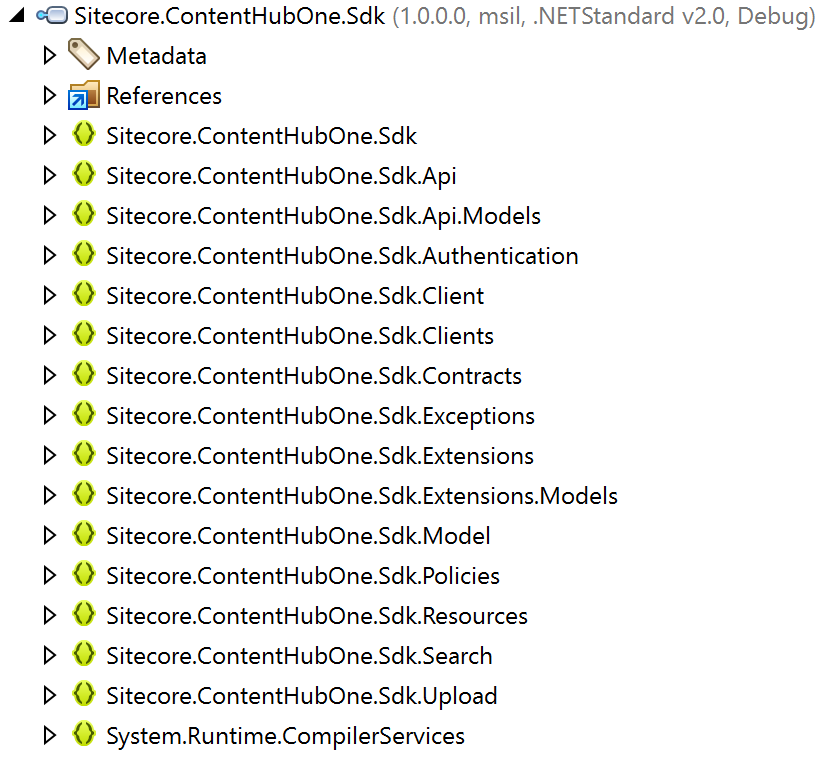
And quite easy to deal with:

var content = await _client.ContentItems.GetAsync();

var collection = content.Data
    .FirstOrDefault(i => i.System.ContentType.Id == "collection");

var whiskies = content.Data
    .Where(i => i.System.ContentType.Id == "pdp")
    .ToList();
However, it has one significant drawback: the only way to get media content for use in a head application is via Experience Edge & GraphQL. After spending a few hours troubleshooting and doing various attempts I came to this conclusion. Unfortunately, I did not find anything about that if the documentation. In any case with GraphQL querying Edge my client code looks nicer and more pretty, with fewer queries and fewer dependencies. The one and only dependency I got for this is a GraphQL.Client library. The additional thing to add for querying Edge is setting X-GQL-Token with a value, you obtain from the Settings menu.

The advantage of GraphQL is that you can query against the endpoints specifying quite complex structures of what you want to get back as a single response and receive only that without any unwanted overhead. I ended up having two queries:

For the whole collection:

{
  collection(id: ""zTa0ARbEZ06uIGNABSCIvw"") {
    intro
    rich
    archive {
        results {
        fileUrl
        name
        }
    }
    items{
    results{
        ... on Pdp {
        id
        vendor
        brand
        years
        description
        picture {
            results {
            fileUrl
            name
            }
            }
        }
      }
    }
  }
}

And for specific whisky record item requested from a PDP page:

{
  pdp(id: $id) {
    id
    vendor
    brand
    years
    description
    picture {
        results {
        fileUrl
        name
          }
        }
    video {
        results {
        fileUrl
        name
            }
        }
    }
}

The last query results get easily retrieved in the code as:

var response = await Client.SendQueryAsync<Data>(request);
var whiskyItem = response.Data.pdp;


Some challenges occur at the front-end part of the head application. 

When dealing with Rich text fields you have to come up with building your own logic (my inline oversimplified example, lines 9-50) for rendering HTML output from a JSON structure you got for that field. The good news is that .NET gets it nicely deserialized so that you can at least iterate through this markup:

Sitecore provided an extremely helpful GraphQL IDE tool for us to test and craft queries, so below is how the same Rich text filed value looks in a JSON format:
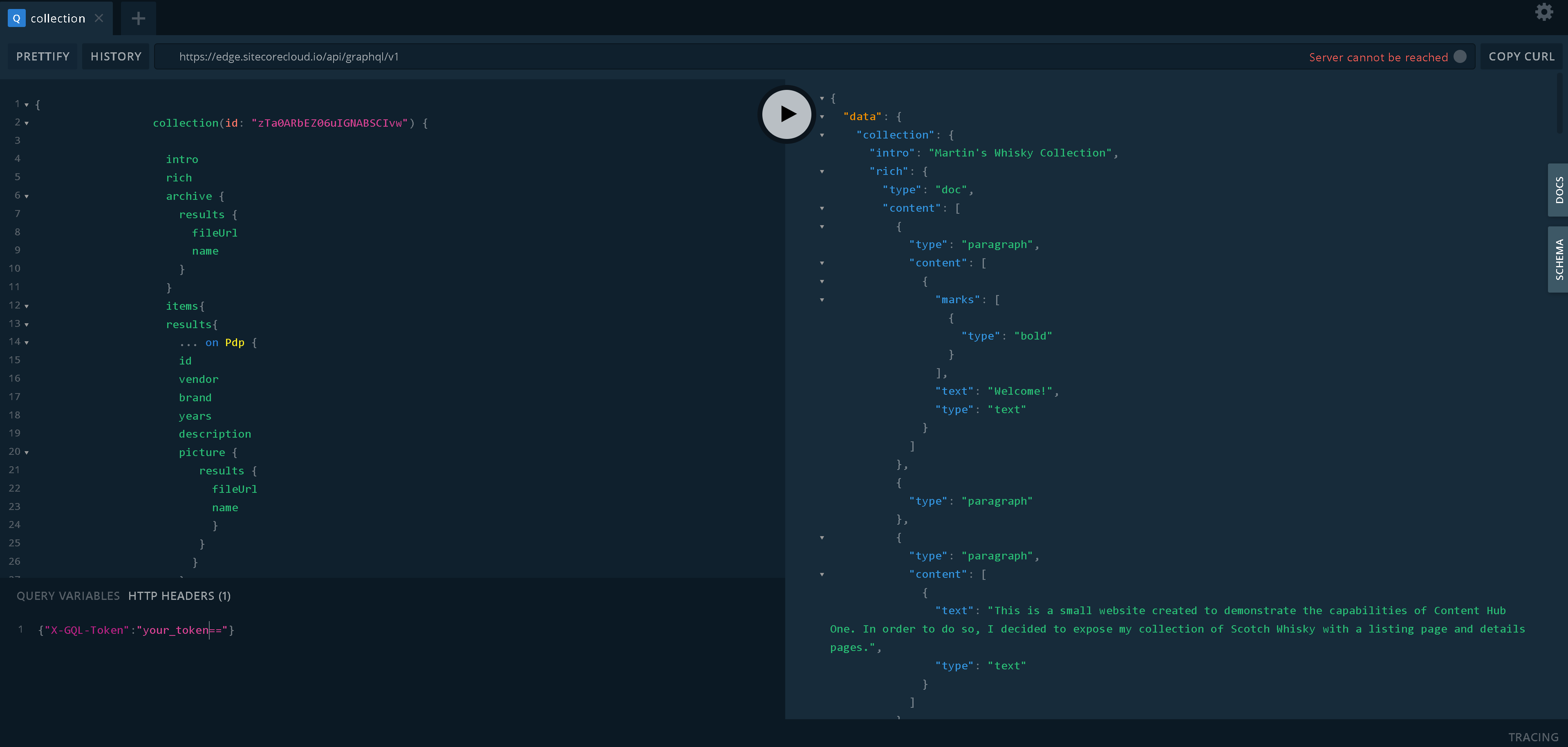
You may end up wrapping all clumsy business logic for rendering Rich text fields into a single Html Helper producing HTML output for the entire Rich text field, which may accept several customization parameters. I did not do that as it is labor-heavy, but for the sake of example, produced such a helper for Long Text field type:

public static class TextHelper
{
    public static IHtmlContent ToParagraphs(this IHtmlHelper htmlHelper, string text)
    {
        var modifiedText = text.Replace("\n", "<br>");
        var p = new TagBuilder("p");
        p.InnerHtml.AppendHtml(modifiedText);
        return p;
    }
}

which can be called from a view as:

@Html.ToParagraphs(Model.Description)


Supporting ZIP downloads

On the home page, there is a download link sitting within Rich text content. This link references a controller action that returns zip archive with the correct mime types.

public async Task<IActionResult> Download()
{
    // that method id overkill, ideally
    var collection = await _graphQl.GetCollection();

    if (collection.Archive.Results.Any())
    {
        var url = collection.Archive.Results[0].FileUrl;
        var name = collection.Archive.Results[0].Name;
        name = Path.GetFileNameWithoutExtension(name);

        // gets actual bytes from ZIP binary stored as CH1 media
        var binaryData = await Download(url);
        if (binaryData != null)
        {
            // Set the correct MIME type for a zip file
            Response.Headers.Add("Content-Disposition", $"attachment; filename={name}");
            Response.ContentType = "application/zip";

            // Return the binary data as a FileContentResult
            return File(binaryData, "application/zip");
        }
    }

    return StatusCode(404);
}


Supporting video

For the sake of a demo, I simply embedded a video player to a page and referenced the URL of published media from CDN:

<video width="100%" style="margin-top: 20px;" controls>
    <source src="@Model.Video.Results[0].FileUrl" type="video/mp4">
    Your browser does not support the video tag.
</video>


Bringing it all together

I built and deployed the demo at https://whisky.martinmiles.net. You can also find the source code of the resulting .NET 7 head application project at this GitHub link.

Now, run it in a browser. All the content seen on a page is editable from Content Hub ONE, as modeled and submitted earlier. Here's what it looks like:

Criticism

Content Hub ONE developers did a great job in the shortest time and there should not be any questions to them. However, from my point of view, there is a big number of both minor and major issues that prevent using this platform in its current stage for commercial usage. Let's take a look at them.

1. Lack of official support for media items other than four types of images is a big blocker. Especially given that there is no technical barrier to doing that in principle. Hopefully, that gets sorted with time.

2. Many times while working with CH1 I got phantom errors, without understanding the cause. For example, I want to upload media but got Cannot read properties of undefined (reading 'error') in return. Later I realized that was caused by session expiration, which for some reason is not handled well in the cases. What is more frustrating - I got these session issues even after just navigating the site, as if navigation did not reset the session expiration timer. But since that is SaaS product - it's only my guesses without having access to internals.

3. Another issue experienced today was CH1 got down with UI showing me a Failed to fetch error. That also occurred with my cloud-deployed head app which also failed to fetch content from CH1. Unannounced/planned maintenance?

4. Not being able to reference more than 10 other records seriously limits platform usage. With my specific example, I had around 50 items of whisky to be exposed through this app but was able to include only max 10 of them. What is worse - there are no error messages around it or UI informing me about the limitation in any other way.

5. When playing around with the existing type I cannot change the field type, and that limitation is understood. The obvious solution would be deleting that field instead and regrating it with the same name but another type (let's assume there's no content to be affected). Wrong, that's not possible and eds with Failed entity definition saving with name: 'HC.C.collection' error. You can only recreate the field with a new name, not the same one you've just deleted. If you got lots of queries in your client code - need to locate them and update them correspondingly.

6. Not enough field types. For example, URL could be simply placed into a small text field, but without proper validation, editors may end up having broken links if they put a faulty URL value on a page.


There is some of UI/UX to be improved

1. Content Hub One demands more clicks for content modeling creation compared to let's say XP. For example, if you publish a content item, related media does not get published automatically. You need manually click through media, locate it and publish explicitly. On large volume of content that annoys and adds unwanted labor.

2. To help with the above, why not add a "Publish" menu item into the context menu upon an uploaded item in a Draft state? That eliminates the unwanted step of clicking into the item for publishing.
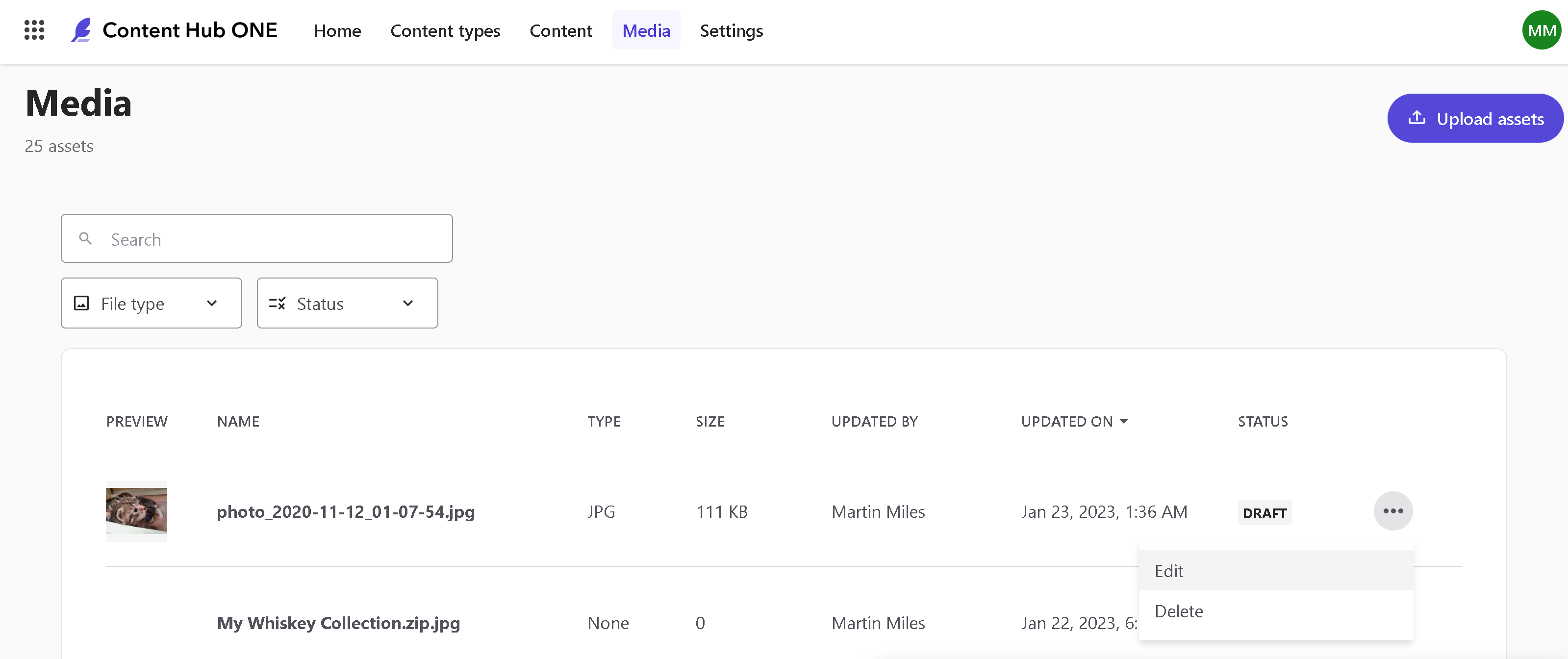
3. On the big monitors the name of a record is mislocated in the top left corner making it unobvious to edit it, given that, it is not located with a form field, so not immediately obvious that is editable. That is especially important for records that are not possible to rename after creation. Bringing the name close to the other fields would definitely help!
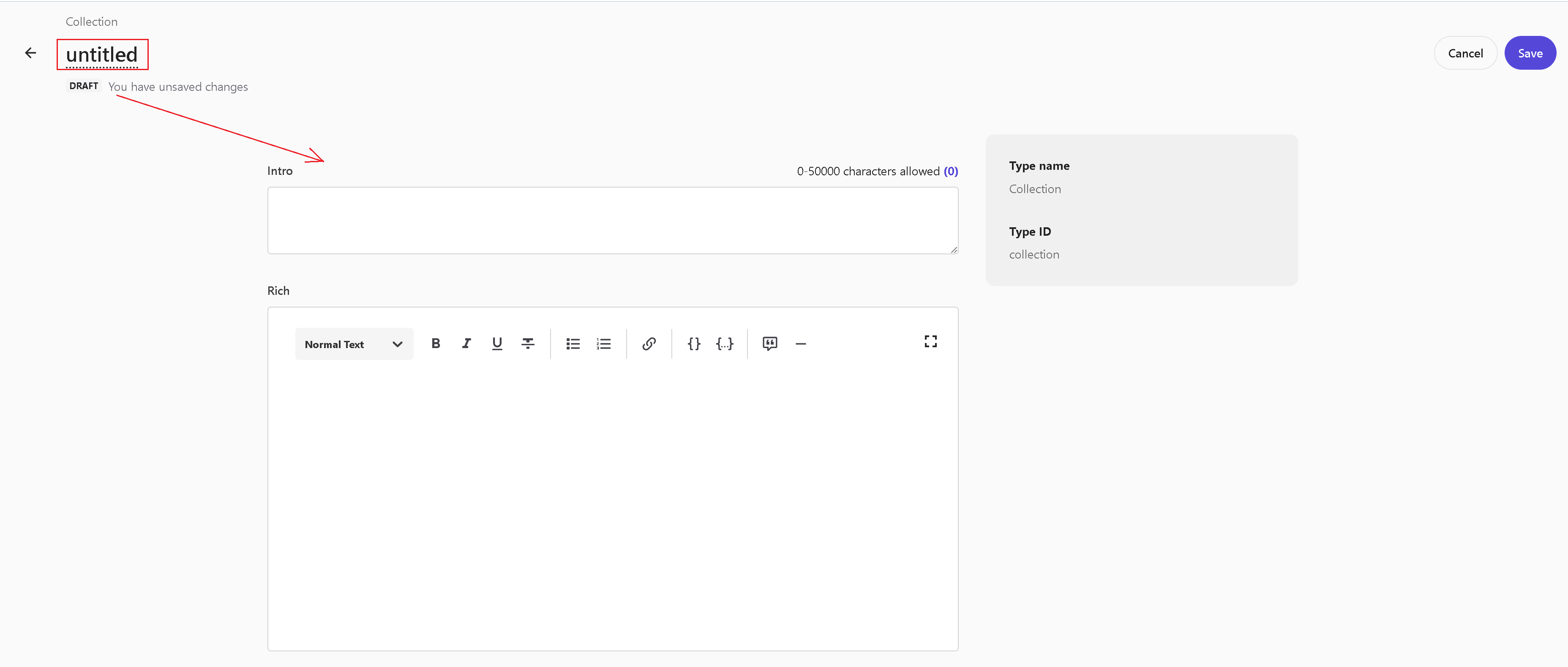
4. Lack of drag&drop. It would be much easier to upload media by simply dragging the files onto a media listbox, or any other reasonable control.

5. Speaking about media, UI does not support selecting multiple files for an upload. Users have to click one after another.

6. Need better UI around grouping and managing assets. Currently, there are facets but need something more than that, maybe the ability to group records into folders. I don't have a desired view on that, but definitely see the need for such a feature, as my ultra-simple demo case already requires navigational effort.


Conclusion

I don't want to end up with the criticism only leaving a negative impression about this product: there are plenty of positives as well. I would only mention just a few: decent SDKs, attention to the details where the feature is actually implemented (like the order of referenced items follows up the order you select them), nice idea of a modern asynchronous UI that can notify you about when the resource gets published to Edge (just need to sort out the session expiration issues).

Content Hub One is definitely in the early stages of its career. I would wish the development team and product managers to eventually overcome the "child sickness" stage of the product and deliver us a lightweight but reasonably powerful headless CMS that will speed up content modeling and content delivery experience. The foot is already in the door, so the team needs to push on it!