Understanding Buckets: adding new items to buckets correctly

read full post

I just came across a question on StackOverflow about Buckets, so I decided to highlight in my blog, as it it is based on very common misunderstanding of Buckets and their functioning principles. Here's the link to original SO question.

If briefly, a guy asked why having a bucket folder with several items in it, when he tries to add a new item, the one appears in a folder as normal item, not hidden. So every time he adds new item he has to perform Sync on that. So let's go and reproduce the situation by steps.

Prerequisites: I have a folder with some items that I am turning into a bucket (at that stage we assume those Articles 1 - 5 have Bucketable checkbox being set on individual level; if you don't know how to update a checkbox for multiple already existing items - here is the great blog post about mass update field values I wrote about):


At this stage my folder is a bucket, items are not displayed, but are searchable, everything functions as normal.


The issue: Then I try to add a new item called Article 6 into my bucket folder. That item is being created as normal, is diaplyed within a folder, and there is also a notification panel warning about storing unbucketable item within a bucket folder. I believe - that is an issue of person asking a question on StackOverflow (see image below). That new item has normal path as an immediate child of bucket folder (not date-specific as defaults for bucket items path) and looking into Item Buckets sections reveals that Bucketable checkbox is not set. To add this Article 6 item into bucket, one needs to check its Bucketable field and then perform Sync from the Ribbon above.


But why that behavior happens?


Solution: Well, this checkbox isn't set but should be on items creation. How do we get that behavior? Just checking that checkbox in corresponding template's Standard Values. Screenshot below shows Article template that is a data template for all Article items. Standard Values for template are always called as __Standard Values so fields set in that item (with static values or tokens) will be auto pre-set each time and item of that template is being created:


So, as soon we have updated Standard Values with Bucketable checked, we try to create another article (of the same template, for sure), we logically call it Article 7. Once created, Article 7 is already bucketable by its Standard Values and is immediately stored in the bucket. There's no need to perform Sync! It also preloads content area right hand side (or you may search for it from Search tab) and if you pay attention to an Item path field - it is being located exactly as specified in (default in our example) bucketing configuration:


Hope this post helps you to understand a concept that is hidden behind the buckets!

Mass update of field value for all existing items of certain template - two ways of achieving result

read full post

Given: I have multiple already existing items of a specific template across my content tree. Template has some field that I want to update with a new value for all existing items, within some node I can specify.

Use cases for that scenario are really universal - you may use that for various purposes. What comes into my head, at a first glance, is the situation when you would like to assign some template to a workflow but already have multiple existing items of that template (just to remind - setting a field value at Standard Values will apply for all new, but not existing items of that particular template). In that case you need assign a workflow to each existing item individually.

Another good example is when you have a folder with multiple items, growing in amount with time flow. Then you may decide to make a folder bucketable, but those existing items require to set a Bucketable checkbox for each existing item individually. I have described that case in one of my previous blog posts - "Understanding Buckets: adding new items to buckets correctly". So let's pick up second case and try to solve it.

Solution: So, what are possible ways of achieving that goal? Not so much of them, there are just two options.

1. Straightforward option - use C# code. With C# task may be achieved by a recursive method, that accepts an item, verifies if the one is of desired template and if yes - updates the field and does the same for all item's children if any. Here is an example of such method and example of call :

private void UpdateAllFieldsRecursively(Item parentItem, string templateName, string fieldName, string newValue)
{
    if (parentItem != null)
    {
        using (new SecurityDisabler())
        {
            foreach (Item childItem in parentItem.Children)
            {
                if (childItem.Fields[fieldName] != null && childItem.TemplateName == templateName)
                {
                    using (new EditContext(childItem))
                    {
                        childItem[fieldName] = newValue;
                    }
                }

                if (childItem.HasChildren)
                {
                    UpdateAllFieldsRecursively(childItem, templateName, fieldName, newValue);
                }
            }
        }
    }
}

// and below there is the call to recursive mehod
const string parentNode = "/sitecore/content";
var database = Sitecore.Context.Database;
var parentItem = database.GetItem(parentNode);

UpdateAllFieldsRecursively(parentItem, "Article", "Bucketable", "1");

The code above works out perfectly and does exactly what we want from it, however there are certain disadvantages: first of all you need to run the code in some context - call if from some existing class, for example. Second - as that is C# code - it must be re-compiled and re-deployed. And if you may need to amend small change into the code - will have to re-compile and re-deploy again. But, luckily, there is a much better and faster alternative:

2. PowerShell Module. That module integrates into the platform and offers unprecedentedly ultimate possibilities and power over Sitecore instance and databases. After installation there is PowerShell console and more advanced PowerShell ISE, where you may create and test scripts. They are executed immediately without any of prerequisites like rebuilt DLL with a code at your bin folder. So, here is a script that does exactly the same as previous C# code:

cd 'master:/sitecore/content'
Get-ChildItem -Recurse . | Where-Object { $_.TemplateName -match "Article" -and $_.Fields["Bucketable"] -ne $null } | ForEach-Object {
   
    $_.Editing.BeginEdit()
    $_.Fields["Bucketable"].Value = "1";
    $_.Editing.EndEdit()
    ""
}

PowerShell script above does exactly the same - iterates Sitecore tree for "Article" templates, starting recursively from /sitecore/content node and if anything found - updates the filed value.

Hope this code helps!

How to host several sites within the same Sitecore instance without specifying a hostname, just on different ports

read full post

Challenge: I have got a test server running, where I usually deploy early builds and proofs of concept for business users to acknowledge. Since recent solution has grown to several websites, so I want users to be able to access all of them. The problem occurs from that users do not have administrative permissions to their PCs and are not able to edit hosts file in order to set multiple host names for my server IP (most of them also are not aware how to do that). The good news is that despite being geographically distributed and being in different virtual networks, they do have access to the server IP address.

Unfortunately, I was not able to specify multiple host names (or IP addresses) to the server as a part of infrastructure configuration, so it became obvious that users should access those websites by IP address, moreover the same IP address to all sites. So what came first into my mind was to distinguish websites by ports within same IIS. Sounds good, but how to do that? I definitely knew that the it resolves website by the host name, not the port, as set within <sites> node of config file. I tried googling a solution but did not find anything...


Investigation: Thus, armed with Reflector and dotPeek tools I started investigating and debugging original code from Sitecore.Kernel.dll. Since a while I came across SiteResolver class, that serves a processor for httpRequestBegin pipeline:


    ...

    ...

So far, so good. The method doing resolving job is called ResolveSiteContext, so I already morally prepared to inherit from SiteResolver class and override that method, implementing site resolution by port.

But what was my excitement, when I notices that it calls SiteContextFactory.GetSiteContext passing hostname, file path and port! So it already supposes port coming from config file, doesn't it? Let's go and inspect this method:

    public static SiteContext GetSiteContext(string hostName, string fullPath, int portNumber)
    {
      fullPath = fullPath.ToLowerInvariant();
      foreach (SiteInfo info in SiteContextFactory.Sites)
      {
        if (info.Matches(hostName, fullPath, portNumber))
          return new SiteContext(info);
      }
      return (SiteContext) null;
    }

and Matches() method follows as:

    public bool Matches(string host, string folder, int portNumber)
    {
      return this.MatchesHost(host) && this.MatchesPort(portNumber) && this.MatchesFolder(folder);
    }

After looking at MatchesPort(portNumber) I chased portNumber and where it comes from. It occurred that parser expects attribute with name "port" and takes the value out of it, or sets default value(0).

Right, so in fact that proves that port number can be solely used for resolving site within same Sitecore instance. But why there is lack of references or documentation about that? In any case this blog post fills the gap, I hope.


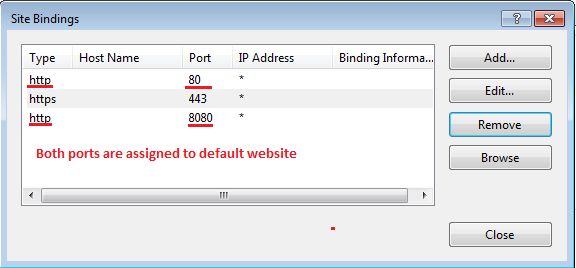
Testing: Now it's time to test my assumption. I have created two bindings for my sitecore instance, for 80 and 8080 ports. Notice that there's no hostnames assigned:
Challenge: I have got a test server running, where I usually deploy early builds and proofs of concept for business users to acknowledge. Since recent solution has grown to several websites, so I want users to be able to access all of them. The problem occurs from that users do not have administrative permissions to their PCs and are not able to edit hosts file in order to set multiple host names for my server IP (most of them also are not aware how to do that). The good news is that despite being geographically distributed and being in different virtual networks, they do have access to the server IP address.

Unfortunately, I was not able to specify multiple host names (or IP addresses) to the server as a part of infrastructure configuration, so it became obvious that users should access those websites by IP address, moreover the same IP address to all sites. So what came first into my mind was to distinguish websites by ports within same IIS. Sounds good, but how to do that? I definitely knew that the it resolves website by the host name, not the port, as set within <sites> node of config file. I tried googling a solution but did not find anything...


Investigation: Thus, armed with Reflector and dotPeek tools I started investigating and debugging original code from Sitecore.Kernel.dll. Since a while I came across SiteResolver class, that serves a processor for httpRequestBegin pipeline:


    ...

    ...

So far, so good. The method doing resolving job is called ResolveSiteContext, so I already morally prepared to inherit from SiteResolver class and override that method, implementing site resolution by port.

But what was my excitement, when I notices that it calls SiteContextFactory.GetSiteContext passing hostname, file path and port! So it already supposes port coming from config file, doesn't it? Let's go and inspect this method:

    public static SiteContext GetSiteContext(string hostName, string fullPath, int portNumber)
    {
      fullPath = fullPath.ToLowerInvariant();
      foreach (SiteInfo info in SiteContextFactory.Sites)
      {
        if (info.Matches(hostName, fullPath, portNumber))
          return new SiteContext(info);
      }
      return (SiteContext) null;
    }

and Matches() method follows as:

    public bool Matches(string host, string folder, int portNumber)
    {
      return this.MatchesHost(host) && this.MatchesPort(portNumber) && this.MatchesFolder(folder);
    }

After looking at MatchesPort(portNumber) I chased portNumber and where it comes from. It occurred that parser expects attribute with name "port" and takes the value out of it, or sets default value(0).

Right, so in fact that proves that port number can be solely used for resolving site within same Sitecore instance. But why there is lack of references or documentation about that? In any case this blog post fills the gap, I hope.


Testing: Now it's time to test my assumption. I have created two bindings for my sitecore instance, for 80 and 8080 ports. Notice that there's no hostnames assigned:


Voila! Hope this hapens to be helpful and may save some efforts for you in future!

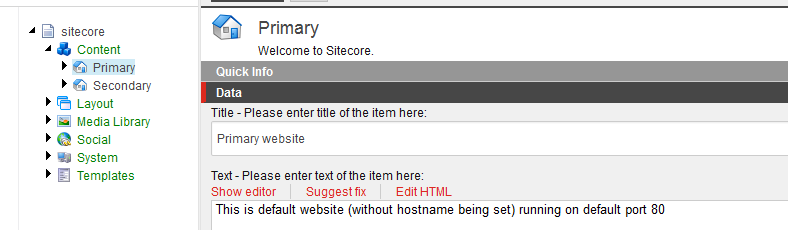
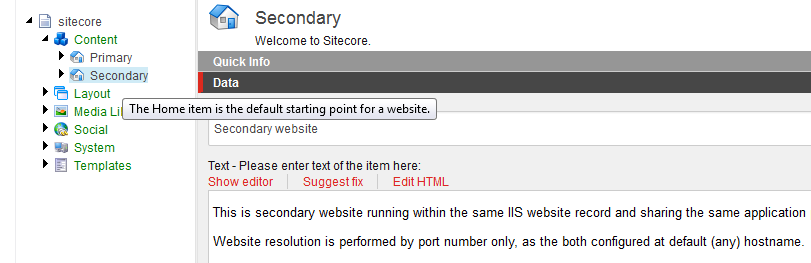
Within Sitecore Desktop I created two website landing pages for each of sites.
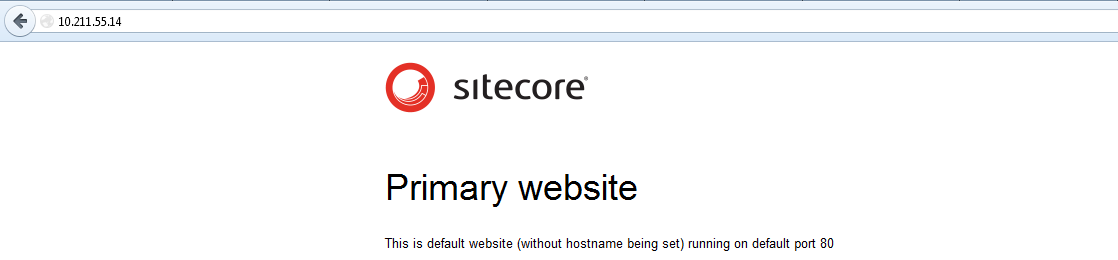
Here is te content for Primary website sitting on default 80 port:
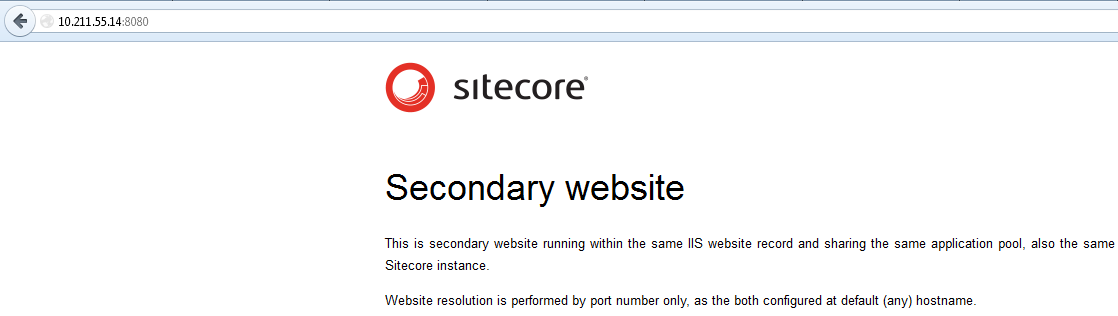
and below is the same for Secondary website on 8080:

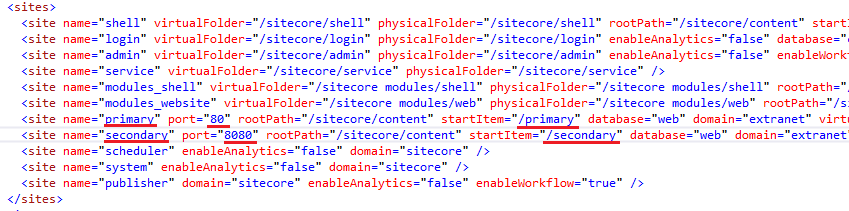
Finally, assign them in the config file. Notice, there is no hostname defined again. Only start item and port number:

Ok, now publish both sites to web database and try accessing them. The first one (primary) opens on default port 80 by simply entering IP address. Expected behavior! It shows content exactly as configured earlier:

Just aplyint port number (8080) to the same IP address we got routed to secondary website. As expected, again:

Voila! Hope this hapens to be helpful and may save some efforts for you in future!

Web Forms for Marketers 8.0 - missing Save to Database action and making it work with SQL database again

read full post

As we know, Sitecore version 8.0 incorporated popular the module called Web Forms for Marketers (WFFM), and it became an integral part of Sitecore. WFFM is still shipped as a package, however now through Sitecore SDN portal, rather than via Marketplace as before.

So, let's assume you have a brand clean install of Sitecore (I have 8.0 Update 4 for this example). In order to download WFFM for 8.0 Update 4 please follow to https://dev.sitecore.net/Downloads/Sitecore_Experience_Platform/8_0/Sitecore_Experience_Platform_80_Update4.aspx and find download link below in the module section.

Remark 1: zip archive you download is not a package - it is normal archive containing 2 child packages - first is package for CM instance and additionally contains all dialogs etc. while another is just CD installation package. For our demonstration, unpack Web Forms for Marketers 8.0 rev. 150625.zip into /Data/Packages directory and use Development Tools - Installation Wizard, as you normally install packages.

Remark 2: ensure you have Mongo up and running, otherwise it will come to "package never installs" issue (more details about that bug here). it is required just for installation, after you have it installed you it is safe to turn off Mongo - WFFM will save data to database without any problems.

Remark 3: it may take up to 5 minutes to install the package, so please do not panic, as soon as you got Mongo running - you'll reach the point when it prompts you for setting Placeholder settings.


After WFFM installation is complete, you may configure a form. By default WFFM contains several pre-created forms as an example for people to play with it and get acknowledges with the module. For those who are new to WFFM here is a screenshot below displaying how to locate Form Designer:


Selecting Form Designer above loads a screen with the list of existing forms. Let's pick Get Our Newsletter form and click OK. Form Designer will load form configuration screen with fields and Subscribe button at the bottom. A click to that button opens Submit panel left hand side with several settings for pre-save (validation), save and post-save (success page / success message).


Remark 4: Those who used to work with previous versions of WFFM will be frustrated by missing Save to Database action from save actions menu. These are save actions that come out of box:


There is nothing to worry about, Save to Database action is still there but is not displayed only because as it always happens. However:

Remark 5: SQL database itself is not coming with the package, so you need to pick database backup from one of previous versions - its schema remains the same. To make you life easier, I have attached forms empty database backup so you may download it by this link. In WFFM 8.0 there is the setting that references connection string name (in you ConnectionStrings.config file) that is used by WFFM.

<!-- CONNECTION STRING - Sets the name of the connection string -->
<setting name="WFM.ConnectionString" value="wfm" />
<add name="wfm" connectionString="Data Source=.;Initial Catalog=test2_Forms;Integrated Security=False;User ID=sa;Password=your_password" />

To make Get Our Newsletter form work, we need to assign it to some page. Default landing page called Home will work well for our purpose. This is how you set a form to a placeholder:


Image above displays webform, because we use default layout that comes with webforms aspx page. For MVC there is rendering called Form MVC. With next step below (as clicking Edit button) you need to specify which exact form should be served by this sublayout (or rendering for MVC):


Now you may verify /Home page in Publish - Preview screen or publish web site and then load the page normally (http://your.site.name/) so you end up with something like on a screenshot below:


After you fill in valid email and click Subscribe button, you'll get "Thank you for filling in the form" message, that's in case database was references correctly. if not - there will be message abut unexpected error and corresponding exception details will appear in log file.

Let's get physically into database to verify the data has been stored correctly. In successful case you'll see one record in Form table and few records in Field table, one record per each form field.


That's all!

Following blog post will demonstrate how to make WFFM result screen display forms records from SQL database.


Sitecore Boilerplate - the repository of best practices all at the same place

read full post

I decided to create an ultimate "boilerplate" solution for Sitecore, implementing all the best Sitecore practices in one place, well documented and cross-linked with the support on this blog.

As a multi-language website with Experience Editor (ex. Page Editor) support utilizing with Glass Mapper, Lucene indexes and test-driven codebase and much more working well all together - it will be a perfect place for newbies to familiarize themselves with Sitecore platform. It aims also to simplify work of more senior Sitecore developers in terms of quickly searching for desired features and grabbing them into their working solutions.

The project originated out of my R&D activities as I decided it would be beneficial to share my workouts with Sitecore community. Any suggestions, comments and criticism are highly welcome!

List of the features I desire to supply into Sitecore boilerplate:

  • Support for Page Editor
  • Usage of Glass Mapper for ORM purposes
  • Unit testable code
  • Synchronization of user-editable content from CD environment to CM and further re-publish to the rest of CDs
  • Support for multi-language environment
  • Custom Lucene indexes
  • Custom personalisation of components and data
  • Workflows based on user permissions
  • Make all mentioned above working together as a solid and stable website
  • Implement new Sitecore 8 marketing features on top of that

.. for the moment I have planned and implemented several of mentioned features as a starting point, so it is coming soon on GitHub and further blog posts here.

Sitecore MVC areas as pluggable separate DLL - making areas further more independent!

read full post

I want to share my experience of implementing MVC Areas as an individually pluggable (into the host website) DLL, that contains the code of specific area: controllers, models / view models, some area-specific DLL. The proof of concept was created by my great colleague Chandra Prakash, I decided to pick it after him and implemented in our product, so now it is 8 month as it works in production without any issues at all.


We are working in a big enterprise Sitecore-hosted project with more than hundred of developers, so each deployment process may bring a pain. Pluggable areas implementation has proven its concept and helped us to keep updating only those parts of entire multisite Sitecore solution that have been updated, without any risk of affecting the rest!


Features:

  • no need to code anything in a host website, thus:
  • no need to rebuild whole big outer solution - just rebuild (and replace) DLL
  • no more need to struggle with complex dependencies
  • simplified update: drop DLL into host website bin folder, and copy some static files referenced by this DLL - js, css, cshtml, img.

In day-to-day usage you will have the only one minor overhead of that implementation: 2 extra fields in controller rendering. In fact, instead of standard Controller Rendering we are using Area Controller Rendering that is derived from Controller Rendering just with addition of 2 extra fields required to resolve the area on a fly:


Sound attractive, isn't it? Then look how it is implemented - I address to the original article with more detailed explanations.


Editing content on a CD server. Part 1. MVC ajax request to controller

read full post

Imagine the situation, when you need to have a page with an updatable text, for instance:

This div becomes editable as you click it

Now the next logical step would be to fire on blur client event (it happens when out focus out of div, ending the editing mode) and send changed content somewhere to the back end. Something simple like jQuery snippet below can handle that:


$('#editField').blur(function () {
        
    $.ajax({
        url: 'some/backend/url/to/post',
        data: { name: value },
        type: 'post',
        success: function () {
            // handle success 
        },
        error: function () {
            // handle error
        }
    });
});

So far, so good. The very next question would be - how do I create an endpoint in Sitecore to support that ajax post request and how do I pass the data and handle positive and negative outcomes? I assume, the back end should have some MVC controller action, that does some back end job of storing my data and returning JSON object back to client script.

So in order to make this work we register MVC routes, this is referenced from Application_Start event handler and is usually implemented in App_Start folder.
    public class Application : Sitecore.Web.Application
    {
        protected void Application_Start()
        {
            RouteConfig.RegisterRoutes(RouteTable.Routes);
        }
    }
    public class RouteConfig
    {
        public static void RegisterRoutes(RouteCollection routes)
        {
            routes.MapRoute(
                 name: "ajax",
                 url: "api/Ajax/{action}/{id}",
                 defaults: new { controller = "Ajax", 
                                 action = "DefaultActionMethodName", id = UrlParameter.Optional }
               );
        }
    }

This route binds all the /api/Ajax requests to be served by AjaxController class. But there is one more setting you require to do in order for your request to go the right direction - in config file set up a custom handler that will intercept that types of requests:

  
    ...
    
    ...

Controller action method being called is specified by caller, and will call DefaultActionMethodName as a default fallback if missing, passing id is optional. Here is the controller:

    public class AjaxController : Controller
    {
        [HttpPost]
        public ActionResult PostComment(string id, PostCommentViewModel model)
        {
            // implement backend logic here

            return Json();
        }
    }

 Controller accepts id as a parameter automatically resolved from URL, as specified in route we configured earlier. It also accepts and binds JSON object that we send as data into PostCommentViewModel object that automatically comes into controller as second parameter. Here is its implementation:

    public class PostCommentViewModel
    {
        [AllowHtml]
        public string Comment { get; set; }
    }
So, we can now finalize jQuery snippet that handles blur effect and sends data to controller. I have intentionally simplified it using external JavaScript objects, for clarity of understanding, you would normally avoid using global JavaScript variables in production code. These objects are used to keep state between ajax calls and to call server only when content is modified indeed. 
If there was an error on server, script retains previous value. If request worked out successfully with a status code 200 (OK) the we store updated value into <div> tag.  
var contents = $('#editField').html();
var id = '@Html.Sitecore().CurrentItem.ID';

var data = {};

$('#editField').blur(function () {
    if (contents != $(this).html()) {

        $.ajax({
            url: '/api/Ajax/PostComment/' + id,
            data: { Comment: $('#editField').html().trim() },
            type: 'post',
            success: function () {
                contents = $('#editField').html();
                var k = 0;
            },
            error: function () {
                $(this).html(contents);
            }
        });

        contents = $(this).html();
    }
});

On the server side there is not much to do with it - just save to database and return the result. Here is the final code of PostComment action of AjaxController:

 public class AjaxController : BaseController
    {
        [HttpPost]
        public ActionResult PostComment(string id, PostCommentViewModel model) // change to HtmlString
        {
            //Response.StatusCode = 500; 

            Database database = Sitecore.Context.Database;
            var item = database.GetItem(id);

            using (new Sitecore.SecurityModel.SecurityDisabler())
            {
                item.Editing.BeginEdit();
                try
                {
                    item.Fields["Comment"].Value = model.Comment;
                }
                finally
                {
                    item.Editing.EndEdit();
                }
            }

            item = database.GetItem(id);
            var val = item.Fields["Comment"].Value;

            return Json(id + " |" + model.Comment);
        }
    }

Editing content on a CD server. Part 2. Event Queue to sync data with master

read full post

... this blog is a next step after Editing content on a CD server. Part 1. MVC ajax request to controller.

Now we got a question on how to implement server logic to store the value. It may seem pretty straightforward for a moment - get item by its ID, update the field and return result. But in fact it's not, due to Sitecore's architectural principles.


Our page is running on a CD (content delivery server) and the item we're trying to update comes from CD database (traditionally called "web"), so if we edit and update item on "web" database - we'll get into situation when "web" contains updated version, while "master" doesn't. Publishing is one-way process of copying items from CM to CD databases (or simply from "master" to "web") so with next publishing we may overwrite updated item in web with outdated previous version from master. Writing directly to CM database is a violation of architectural principles, while it is technically possible on your developer "default" Sitecore installation, in real world Sitecore CD servers do not keep "master" connection string, making this process impossible. So, what should we do in that case?


Luckily, there are several ways of solving this scenario, each has its own pros and cons, so it is worth of thinking well ahead which (and if) is applicable to your solution.

Solution 1: Allocate a separate database in parallel with web, to store all user editable content. Normal items and non-user content will remain in web database, as normally. Here is the great article describing that approach:

Solution 2: Employ Sitecore Event Queue no notify CM about CD changes, so that as soon CM receives update event, it updates itself with the latest change coming from CD and then re-publishes the change across the rest of CD databases in order to keep them in sync. We describe this approach below.


Sitecore has a mechanism that is called remote events and allows communication between instances. This is implemented via "core" database that has EventQueue table that is monitored by a minor periods of time (like 2 seconds). We always have connection string reference to core database on our CD, at least for authorization / security purpose but also to support Event Queue that servers transport for publishing operations.

So, the process of saving comment on back end now looks fairly complicated - as post request comes - we still save the changes into CD ("web") database, on CM we also add an additional handler to item:saved event that executes custom code with event handler, that updates the same item on master database. And finally, you may programmatically re-publish updated item to other CD instances (if many), that do not have an updated version yet.

Now let's look at the code that implements all described below. AjaxController will include additional code right before returning JSON back to browser:

UpdateCommentEvent evt = new UpdateCommentEvent();
evt.Id = item.ID.ToString();
evt.FieldName = fieldName;
evt.Value = database.GetItem(id).Fields[fieldName].Value;
                 
Sitecore.Eventing.EventManager.QueueEvent<UpdateCommentEvent>(evt); 

What we're doing here is just queueing an event. UpdateCommentEvent is a custom event written by us, it is normal C# class, but please pay attention to DataContract and DataMember attributes. This is required for serialization purposes. Here is how UpdateCommentEvent is defined within the code:

using System;
using System.Collections.Generic;
using System.Linq;
using System.Text;
using System.Runtime.Serialization;

namespace Website.Code.Events
{
    [DataContract]
    public class UpdateCommentEvent
    {
        [DataMember]
        public string Value { get; set; }

        [DataMember]
        public string Id { get; set; }

        [DataMember]
        public string FieldName { get; set; }

        public UpdateCommentEvent(string id, string fieldName, string value)
        {
            Value = value;
            Id = Id;
            FieldName = fieldName;
        }

        public UpdateCommentEvent()
        {
        }
    }
}

And, of course, we define UpdateCommentEventArgs that comes along with our new event:

namespace Website.Code.Events
{
    public class UpdateCommentEventArgs : EventArgs, IPassNativeEventArgs
    {
        private UpdateCommentEvent _evt;

        public UpdateCommentEventArgs(UpdateCommentEvent evt)
        {
            _evt = evt;
        }

        public string Id
        {
            get { return _evt.Id; }
        }

        public string FieldName
        {
            get { return _evt.FieldName; }
        }

        public string Value
        {
            get { return _evt.Value; }
        }
    }
}
Implementation on CM side: first of all we need need to specify a new hook.

    
 ...   

Here's the code referenced by hook specified above. We subscribe to our event and once it arrives - we call Run method that arranges local (for CM environment) event:

using System;
using Sitecore.Events.Hooks;
using Sitecore.Eventing;

namespace Website.Code.Events
{
    public class UpdateCommentHook : IHook
    {
        public void Initialize()
        {
            // and now raise event locally
            EventManager.Subscribe<UpdateCommentEvent>(new Action<UpdateCommentEvent>(UpdateCommentEventHandler.Run));
        }
    }
}

We need to specify new local event called updatecomment:remote in the configuration as associate it with a handler method:


And here is OnUpdateCommentRemote event handler that fires on CM. It gets event arguments, casts them to UpdateCommentEventArgs and extracts data out of arguments. In order to update an item on CM we require 3 parameters: Item ID, field name to be updated and the value to be updated with. All three are stored in event arguments so now we are able to update item on master database.

namespace Website.Code.Events
{
    public class UpdateCommentEventHandler
    {
        /// 
        /// The method is the method that you need to implement as you do normally
        /// 
        public virtual void OnUpdateCommentRemote(object sender, EventArgs e)
        {
            if (e is UpdateCommentEventArgs)
            {
                var args = e as UpdateCommentEventArgs;
                var master = Sitecore.Configuration.Factory.GetDatabase("master");

                using (new SecurityDisabler())
                {
                    var itemOnMaster = master.GetItem(args.Id);

                    using (new EditContext(itemOnMaster))
                    {
                        itemOnMaster[args.FieldName] = args.Value;
                    }
                }

// also do publishing to other CD here, if required
} } // This methos is used to raise the local event public static void Run(UpdateCommentEvent evt) { UpdateCommentEventArgs args = new UpdateCommentEventArgs(evt); Event.RaiseEvent("updatecomment:remote", new object[] { args }); } } }
If there are multiple CD environments (at least one apart from the one where we edit the comment) you will also need to re-publish from CM to those CDs in order to keep them all in sync.

So, in these two blog posts we described how to make an ajax MVC call to controller on back-end server and update user editable content on CD environment keeping it in-sync with other environments. Hope this post helps you to understand Sitecore architecture better.

See also (additional references):

Sitecore.Support.RemoteEventLogging
Tweak to log all item:saved:remote events of EventQueue that were just processed.
https://bitbucket.org/sitecoresupport/sitecore.support.remoteeventlogging/wiki/Home

Tip: copying Presentation Details manually

read full post

I came across a question on StackOverflow where a guy asked about copying presentation details and decided to share this quick tip. Saying Presentation Details I mean all the information about layouts, renderings, placeholders etc., so whatever you usually configure on that screen:


So, you usual data is stored within item's fields, but where does presentation live? Well, presentation is also kept within item, but in a slightly different location.

You page template is inherited from Standard Template, it has plenty of important fields and sections, among which there is Layout section. Let's go and see what is there. But before, open View tab ensure Standard fields is checked in order to display all sections provided by Standard Template and also check Raw values option to display actual content of the fields:


Then, scroll down to Layouts section and expand it.


Rendering field contains all presentation details, serialized into XML. So now, if you copy them 'as-is' to clipboard and insert to another item - that item will immediately same layout, all renderings in the same order, placeholders etc. You may also copy that across environments, assuming both target and source environment have those layout and renderings.


Note: if you need to copy Presentation Details just within same database, there a nice and quick solution right from the UI:


Hope this helps!

Sitecore xDB Cloud: don't want to mess with xDB? Let Sitecore do that for you!

read full post

Just wanted to share one option I recently found out, not many people aware about.

To start with, I am working in a large insurance organisation (which is in much regulated industry) with a pretty complex configuration of load balances, reverse proxies, multiple geographically distributed CD boxes in different data centers (and networks). So I was very surprised to find out there is such an offer from the vendor.

Sitecore offers to host you xDB in their cloud, powered by Azure. All maintenance and processing raw data from Mongo to Reporting database is done on their side. What is ends up for organisation is just setting connection string (to reporting database) in config and ensure firewall rules allow connectivity to the instance.

Pricing seems to be bespoke for your solution and not cheap (as everything from Sitecore), but it is reasonable if compare to a full time resource efforts, for example it comes out that our company even saves a bit! Again, this may not fit to all organisations and depends on people and infrastructure they already have in possession.

This information is a very "early bird" for me, so I will update with more details as soon as we start working with Sitecore xDB Cloud

IIS URL Rewrite module - as reverse proxy with links rewrite

read full post

Not many people know that IIS itself can serve as Reverse Proxy, with rewriting URLs on-the-fly. We are going to take a look on how to configure that feature. Let's assume we have 2 websites - primary website that has URL http://test2/ and is a hosted by IIS, moreover there is an instance of Sitecore installed; and another external static website that has URL http://external/ and it has few static pages and resources. For this experiment I got external website hosted at the same IIS instance, while in reality it can be literary anything and anywhere.


Apart from having IIS, you will need the following prerequisite:

- URL Rewrite Module installed, version 2.0

- Application Request Routing version 2.0


The easiest way to get all the prerequisites is to install them through Web Platform Installer. It will install all of them so you'll just need to have IIS refreshed and get ready to start.


External website contains static.html file with the following code

<div>
    img/sitecore.png<br>
    <img src="img/sitecore.png" alt="sitecore" width="230" height="106">
</div>
<div>
    /img/sitecore.png<br>
    <img src="/image.axd?picture=/images/sitecore.png" alt="sitecore" width="230" height="106">
</div>
<div>
    http://external/img/sitecore.png<br>
    <img src="http://external/img/sitecore.png" alt="sitecore" width="230" height="106">
</div>
<p>
    <a href="sitecore.zip">sitecore.zip</a><br>
    <a href="/sitecore.zip">/sitecore.zip</a><br>
    <a href="http://external/sitecore.zip">http://external/sitecore.zip</a><br>
</p>

This code has 3 images and 3 links to an archive file, each of them is either relative link (from the doc level, for sure) or absolute link (from web root) or fully qualified link including domain name and protocol. This HTML renders renders into the following screenshot:


Our objective is to have a "virtual" "folder" called ext on the test2 website so that it "mapped" to external website and also correctly "maps" and rewrites all the resources of external website on resulting page.

Example:

When we hit http://test2/ in browser - we get default Sitecore page as it is provided by Test2 website, as normally.

When we hit http://test/ext/static.html - we get the page at that URL but with the content of external/static.html page with all links and references rewritten to be test2/ext/*.* instead of external/*.*

So, to make IIS Rewrite work as reverse Proxy, let's do the following steps:


Make sure "Enable proxy"is checked, otherwise nothing will work.


In URL Rewrite section, click "Add Rule(s)" link, then from popup screen select "Reverse Proxy" and specify the rule. Also check outbound rules as the are rules that factually rewrite internal links. Please note that this function may add some overhead to your website performance.


After you specify the rules - one inbound and 2 outbound (they are shown below) - reverse proxy now functions and you may verify that by requesting the following ULR (as on the screenshot below):


Notice, that all links and images look correct, as the were before. To ensure they were rewritten correctly, let's view the source file of resulting page. Here is it:

<div>
    img/sitecore.png<br>
    <img src="img/sitecore.png" alt="sitecore" width="230" height="106">
</div>
<div>
    /img/sitecore.png<br>
    <img src="http://test2/ext/img/sitecore.png" alt="sitecore" width="230" height="106">
</div>
<div>
    http://external/img/sitecore.png<br>
    <img src="http://test2/ext/img/sitecore.png" alt="sitecore" width="230" height="106">
</div>
<p>
    <a href="sitecore.zip">sitecore.zip</a><br>
    <a href="http://test2/ext/sitecore.zip">/sitecore.zip</a><br>
    <a href="http://test2/ext/sitecore.zip">http://external/sitecore.zip</a><br>
</p>

As there were no need to rewrite relative URLs - they remain untouched. However root-folder URL and full URL were rewritten to satisfy new domain name and desired folder-path.

And finally, here is resulting configuration that makes it all work. Whatever we have previously configured is stored in the configuration file within system.webserver node in rewrite section:

<rewrite>
      <rules>
        <clear></clear>
          <rule name="ReverseProxyInboundRule2" stopprocessing="true">
            <match url="(ext)/(.*)?"></match>  
              <conditions>
                  <add input="{CACHE_URL}" pattern="^(https?)://"></add>
              </conditions>
              <action type="Rewrite" url="{C:1}://external/{R:2}"></action>
          </rule>
      </rules>
      <outboundrules>
        <rule name="ReverseProxyOutboundRule2" precondition="ResponseIsHtml1">
          <match filterbytags="A, Form, Img" pattern="^/(.*)" negate="false"></match>
          <action type="Rewrite" value="http://test2/ext/{R:1}"></action>
        </rule>
        <rule name="ReverseProxyOutboundRule1" precondition="ResponseIsHtml1">
          <match filterbytags="A, Form, Img" pattern="^http://external/(.*)?" negate="false"></match>
          <action type="Rewrite" value="http://test2/ext/{R:1}"></action>
        </rule>
        <preconditions>
              <precondition name="ResponseIsHtml1">
                  <add input="{RESPONSE_CONTENT_TYPE}" pattern="^text/html"></add>
              </precondition>
          </preconditions>
      </outboundrules>
    </rewrite>

There is no need to use visual configurer at all, you may just drop this snippet on web.config into appropriate section and it will start working straight away!


Sitecore 8: re-indexing errors out and module installation never ends without MongoDB running

read full post

What is happening? we got a commonly met point of frustration since recent - imagine, you have just installed an instance of Sitecore 8 and are trying to install some useful modules, for example Web Forms for Marketers 8.0 or PowerShell Module. And all you get is never-ending progress box dialog.


However that occurs not only while installing a module, but also when trying to rebuild indexes via built-in Developer toolbar interface. Same story, but at least this time it tries to tell us something with View all messages section, unfortunately unsuccessfully - there are no any error messages seen once you expand this box.


Why is it happening? Going through log files made me thinking there is something with xDB, it looks like sitecore tries to perform write operation into Mongo, but is not able to do. And because Sitecore 8 is now using modern client-based SPEAK interface instead of outdated SheerUI, the back-end where in fact an error occurs is not able to notify client about that (I believe is it not yet implemented and would be fixed with future updates).

How to fix? Let's install and run MondoDB. After default windows installation, the easiest way of running Mongo would be just running its server with dbpath parameter to where DB placed. I say the easiest because there is a better alternative to run MongoDB as Windows service application, so that it will run on system start up.


So, as soon Mongo is up and running, let's test our assumption and try to re-build Lucene indexes again:


And bingo! It now works well! Hope this solution helps.

Sitecore extensions for Google Chrome review

read full post

  1. Sitecore Developer Tool
  2. Sitecore Analytics Testing Tools
  3. Sitecore Expand Collapse Sections
  4. Sitecore Keyboard Shortcuts
  5. Sitecore Helper
  6. Dan's Sitecore Shortcuts

1. Sitecore Developer Tool

This is a nice, elegant and non-obtrusive shortcut extension located at the top right of your Chrome browser. It has several most useful shortcuts logically grouped by tabs.


Admin Pages tab contains useful admin pages hotlinks.


Database tab allows to quickly change context database.


Mode tab has 6 switchers - the names are self-describing.


There is also options tab, where you can add / edit favourites, add more databases and perform other settings for the extension.

You may install Sitecore Developer Tool by this link.


2. Sitecore Analytics testing tools

As it comes clear from its name, this is an extension to fit specific analytics purrposes, which are: clearning analytics-related cookies and specifying a forwarded IP address for GeoIP lookups.


Below there are screenshots of its settings screen:


Download and install exension: the link.


3. Sitecore Expand Collapse Sections

Minimal extension that serves just one purpose - expand and collapse data section panels in Sitecore.


What can be easier?


Unfortunately, at the moment this extension does not support Sitecore 8, so the last funcional verison is 7.5

You may install Sitecore Expand Collapse Sections by this link.


4. Sitecore Keyboard Shortcuts

It presents


It is a powerfull extension that allows you to create hot keys to quickly complete common tasks in Sitecore. This is especially useful for demos or for quick access to frequently used items. No need to repeatedly expand the content tree any longer.

it works well for Sitecore 8 as well as with all previous versions I have tested with. It also works well on Mac computers, however mac-specific keyboard extensions (ie. Cmd) are not supported. screenshot below shows settings screen:


And here is a dropdown containing list of possible actions. Quite impressive!


Download and install exension: the link.


5. Sitecore Helper

This extension brings upgrades the Sitecore interface with toggleable usability fixes.Applies several fixes & updates to the Sitecore user interface, use the options menu to toggle them on / off.


Download and install exension: the link.


6. Dan's Sitecore shortcuts

Extension provides a drop down with features and shotcut buttons.


Download and install: the link.


Hope these extensions may help you to improve your productivity while working on Stecore projects!

Know your tools: SIM - Sitecore Instance Manager

read full post

Sitecore Instance Manager (SIM) - the must-have tool for all Sitecore professionals and platform enthusiasts. It is a "Swiss army knife" for all types of activities related to installation and configuring Sitecore instances. So, what it does?

As it is obvious from its title, SIM simplifies installation of Sitecore, minimizing it to just few very intuitive clicks. SIM supports all versions of Sitecore, developers work tightly with platform vendor, so since recent they tend to synchronize SIM updates with new Sitecore releases. Oh, nearly forgot to mention, SIM has auto-update module that can update the program silently in background, or with a prompt, or just leave user alone once he prefers getting updates donу manually.

Here is the main screen of Sitecore Instance Manager:


You have all available instances listed, you can install new or remove existing, do some configuration changes and much more. SIM operates "web-folder" installation archives as they came form Sitecore, one can download zip and manually place it into specific folder (that is configurable in program settings) or can download and store any platform version directly from SDN. In that case he/she might need to type in SDN credentials and pick up exact Sitecore version from options drop-down. As soon as zip is downloaded, it can be installed.

The installation process occurs in few clicks and is show on several screenshots below. First of all, we select which version we are going to install from the list of stored in local repository. Also there are fields to specify instance name, hostname and the installation folder.


The program accurately installs files, restores database and sets appropriate SQL permissions, configures Application Pool and create config files with correct values.

SIM is great in that it allows not just install Sitecore itself, but also you may specify which modules you would like to install straight away, just by simply checking them from the list of available.


Apart from modules you may also install certain custom packages, likewise you may have a fully working website - both items and file system substructure packed within a package, so it may become available straight after the installation. As another example, I always install useful Sitecore adjustments with SIM in order to benefit out of them straight away.


Not only custom packages can be auto-installed, but also such called configuration presets. These are certain configuration patches, each addressing small but important setting, will be placed into App_Config/Include folder.


The installation itself does not take much time. Sitecore 8 takes approximately 1 minute in virtual machine on my MacBookPro. Significantly faster comparing with time spent on default installer.


SIM also have multiple useful shortcuts at one place, like links to important Sitecore folders, configuration tools, hosts editor, IIS recycle an many many more.


I would award SIM with the highest rate and highly advise to download and play with it, even if you do not regularly play with installation and instances.

Download: SIM on Sitecore Marketplace


Fixing unfriendly default Sitecore 8 styles from huge elements, padding, spacings and few more improvements (package)

read full post

I am entirely happy with Sitecore 8.0 improvements, except one simple, but quite important thing - new look and feel megalomania. In first place by saying that I mean the way how Sitecore with new Metro-like interface manages space and huge paddings between elements. The maximal impact you may experience when working with Content Editor - content tree and item fields. I got an assumption that it was designed for use on as little as 27" monitors, not less. If you are running Sitecore from a 13-15 inches laptop - you definitely should read this blog post to the end.

Things however are not as bad and the good news is - it can be relatively easy to improve by simply editing CSS files, that Sitecore utilizes - they are located within <web_root>\sitecore\shell\Themes\Standard\Default folder. The bad news is that the folder contains 34 CSS files and some of them have several thousands lines.

So, my dear reader, I have made this dirty job for you and you may download the package that modifies styles, which make spaces as compact as they were in previous versions.


To start with, compare 2 images below. First one shows how Sitecore 8 looks originally, straight after the installation:


And below there is a screenshot of the same screen after applying a Style Adjustments patch. See how content tree became more informative:


There is one small, but quite handy improvement - we all know database selection tool in the right bottom corner. If you click it and enable "Show Database Name"option - by default you'll get a database name, written on a desktop right above this database selector. But it is displayed only when you see clear desktop, as soon as you open Content Editor - this useful label will be hidden underneath the window. So I decided to relocate this label to the bottom bar immediately left from select box. So now you are aware of current database regardless of wether you have a windows open full-size. Here is a screenshot of how it looks like:


There are still other changes across the whole sitecore - windows, popups, dialogs etc. that were improved. Package creation dialog became more compact as the result:


Screenshot below shows the comparison how it was before. In the default view only 2 selected items are able to fit .... eh-h..


Download the package: so, to get this presentation changes on your environment, please download and install the package: Sitecore 8.0 Style Adjustments-1.2.zip or Sitecore 8.1 Style Adjustments-1.2.zip - agree to overwrite all, when prompted.

Want to revert changes back as it was before? (suprised one would want but still) - apply anti-package: Sitecore 8.0 Style Adjustments-1.2-ANTI-PACKAGE.zip or Sitecore 8.1 Style Adjustments-1.2-ANTI-PACKAGE.zip

Compatibility tested: Sitecore 8.0 - Update 4-5 (however supposes to work on all previous 8.0 releases).

Important! After package installation not all style may work - so please update your broser cache


If you like the updated look and feel, please let me know - I will be pleased to know someone else is using this adjustments.

Cheers!